

Creating and Using Expiring Subscriptions
Overview
The Expiring Subscription feature enables you to introduce time-limited products and discounts to your accounts. This is useful for setting up temporary offers, such as a 10% discount for 12 months or fixed-term installment plans for equipment purchases.
Throughout this article, products and discounts are collectively referred to as subscriptions.
How expiring subscriptions work
Expiration is determined by the number of times a subscription appears on a recurring invoice. This count is set during product creation, and can be adjusted for a single account when the subscription is assigned.
For example, a count of 1 means the subscription will be applied once, then automatically removed from future invoices.
Actions that affect the expiration count:
Assigning the subscription to an account upon activation, triggering the first recurring invoice.
Adding the subscription to an account’s recurring invoice during regular billing cycles.
Actions that do not affect the count:
One-time debits or credits involving the subscription.
Assigning or un-assigning the subscription.
Reactivating a suspended subscription.
Suspending the subscription.
Overriding the subscription price.
Canceling the subscription (further discussed below).
A few additional notes:
Only subscriptions with a Recurring payment strategy can use expiration settings.
Existing subscriptions cannot be updated to include an expiry; new subscriptions must be created.
You cannot update the expiry settings for existing products or discounts.
Fees cannot be configured to expire.
By default, subscriptions do not expire. You must enable this setting.
Creating an expiring subscription
Expiring subscriptions are created in the Product Catalog. During setup, in Additional Settings, check Limit the number of times the discount will recur on an account (the wording names the type of item you are creating) and set how many invoice cycles the subscription will apply to.
Once configured, any time this subscription is added to an account, it will follow the rules set in the catalog by default. These rules can be adjusted for that account when the subscription is assigned (see Adjusting the recurrence limit at assignment below).
For full instructions on adding subscriptions, see the Product Catalog Module.
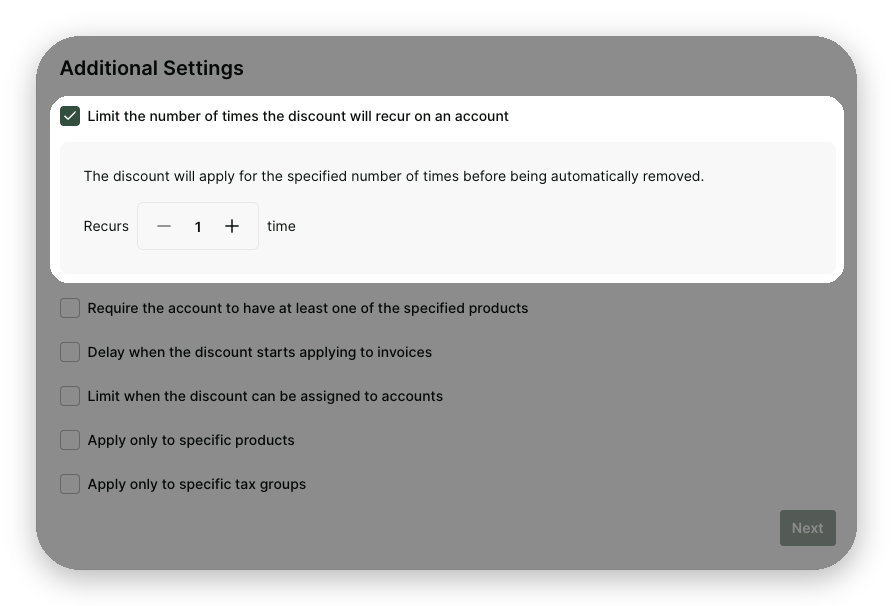
Other Additional settings
These settings are only available for recurring discounts.
Delay when the discount starts applying to invoices:
You can delay when a discount begins. This allows you to create promotions that begin only after a set number of invoice cycles have passed since the subscription was added to the account.Limit when the discount can be assigned to accounts:
Discounts can be configured with a valid assignment period, using a Start date and/or an End date. If both dates are set, the discount can only be assigned to accounts during that specific window.
If the discount is assigned to an account within the valid window, it will automatically apply on the next invoice. Invoice generation usually occurs around 9–10 AM in the organization's local time zone.Restrict which accounts can be assigned based on the tags:
This setting limits assignment to accounts that match at least one of the selected tags. It helps prevent incompatible subscriptions from being added to the wrong accounts.Require the account to have at least one of the specified products:
The discount can only be assigned to accounts that have one of the selected products.Apply only to specific products:
Limits the discount to specific products, product categories or product category types.Apply only to specific tax groups:
Select tax groups, each with an optional tax exclusion amount that is removed from the price before taxes are calculated. Not available when the tax setup is Don’t charge tax.
Using expiring subscriptions
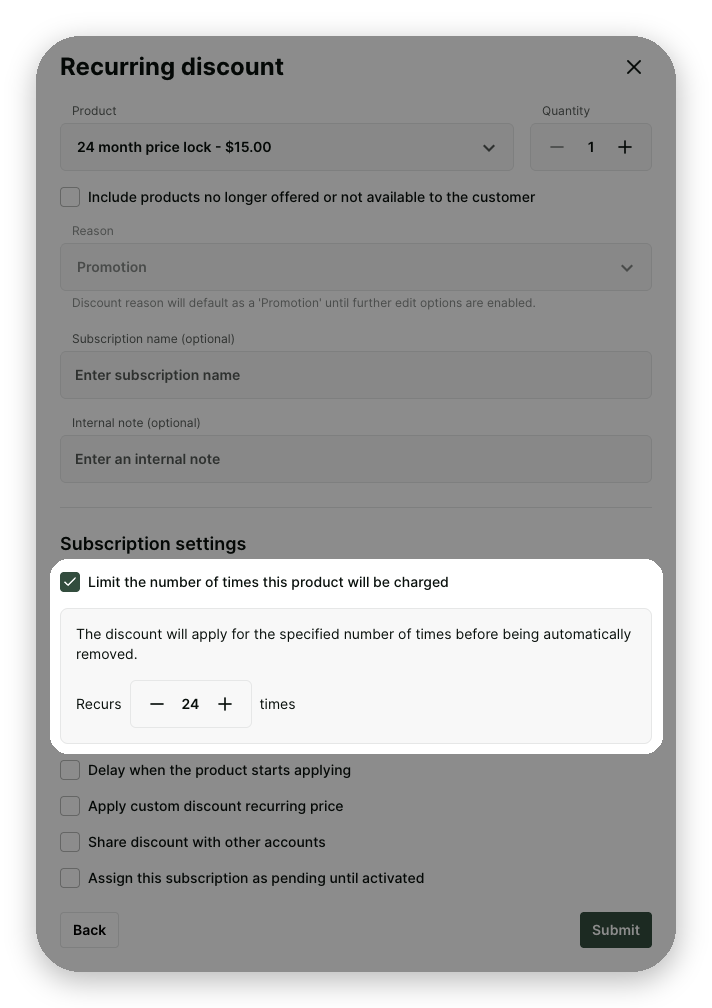
Adding an expiring subscription works the same way as other recurring subscriptions. However, you'll see alerts in the interface confirming the expiration rules.
Below are examples of what users see when assigning expiring subscriptions, and how these appear in an account before and after expiration.
Assigning a subscription with an expiration
How expiring subscriptions appear on an account
In the account’s Subscriptions list, the Tags column shows where each expiring subscription stands:
"Expires": the subscription is still applying. Hover over the tag to see the date it is valid until.
"Expired": the subscription has been applied the set number of times. Hover over the tag to see the date it expired.
"Starts on": a delayed discount that has not started applying yet.
No tag shows while the subscription is "Pending" or when the account’s billing cycle is disabled.

Adjusting the recurrence limit at assignment
When you assign a recurring product or discount with the + Subscriptions button, the Subscription settings section shows its expiration rules for that account. The values set in the Product Catalog are filled in by default.
Limit the number of times this product will be charged: the subscription recurs the number of times shown (1 to 999), then is automatically removed. This box is checked by default when the product has a recurrence limit in the Product Catalog. You can also check it to add a limit to a product that has none.
Delay when the product starts applying (discounts only): the discount skips the number of invoice cycles shown (0 to 999), including the initial activation invoice.
A change here only affects the subscription being assigned. The product in the Product Catalog stays the same.
Unchecking Limit the number of times this product will be charged removes the limit for that subscription, even if the product has a recurrence limit in the Product Catalog. The subscription then applies on every recurring invoice until it is removed from the account.
Any user who can assign subscriptions can adjust these values. No separate permission controls them.
A note on proration and cancellation
Unlike standard subscriptions, expiring subscriptions are never prorated when they are added, including mid-cycle.
Cancelling an expiring subscription early works like any other subscription once it has appeared on at least one invoice. The Unassign window shows the proration option, checked by default for dollar-based products and discounts, and you can uncheck it. Percentage discounts are not prorated.
You may handle other edge cases manually using a one-time debit or discount.
More usage notes
To switch an account to an expiring subscription, unassign the current one and add the new expiring version.
Expiration rules cannot be edited once assigned to an account (in the current release).
Expiration is defined in the Product Catalog as a default, and can be adjusted at the time of assignment.
Expiring subscriptions cannot be reused across accounts. Each instance is account-specific.