

Managing Workflow Labels
Overview
Workflow labels let you tag and organize your workflow library by function — for example, "Onboarding," "Billing," or "Troubleshooting." As your team builds more workflows, labels make it faster to find what you need on the Workflows page and in the workflow launcher.
In this article, we'll be covering how to create, edit, and delete labels from Workflow Settings, how to assign labels when creating a workflow, and how to filter your workflow library by label.
Understand permissions
Access to labels is controlled by two permissions under Workflows > Labels:
View — required to see the list of labels in Workflow Settings. Anyone who can open a workflow can see the labels assigned to it.
Edit — required to create, edit, and delete labels. Assigning labels to a workflow also requires the Workflows > Edit permission.
Contact your administrator if you need access to label management.
Create a label
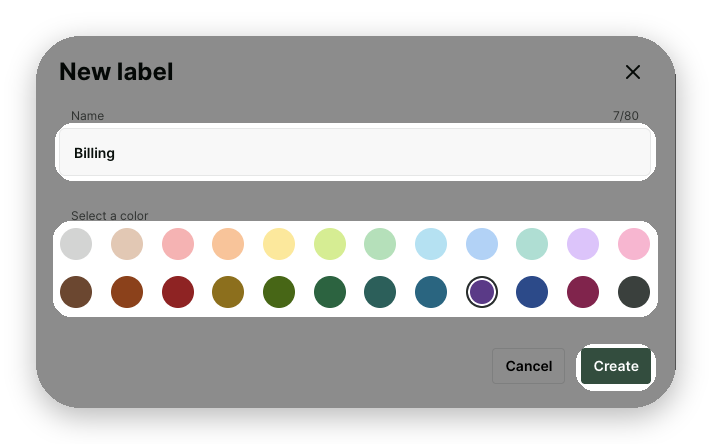
Labels are created from the Labels tab in Workflow Settings. There are no default labels — your team builds its own label structure from scratch.
From the main navigation, go to
Workflows > Settings > Labels.Click New label.
Enter a name in the Name field. Label names must be unique within your environment and cannot exceed 80 characters.
Under Select a color, choose a color for the label.
Click Create.
A confirmation message appears and the new label is immediately available to assign to workflows.
Edit a label
You can rename a label or change its color at any time. Changes take effect immediately wherever the label appears.
Go to
Workflows > Settings > Labels.In the labels table, click the three-dot (⋯) menu on the label you want to change and select Edit.
Update the name or color.
Click Save.
A confirmation message appears when the change is saved.
Assign labels to a workflow
When creating a workflow
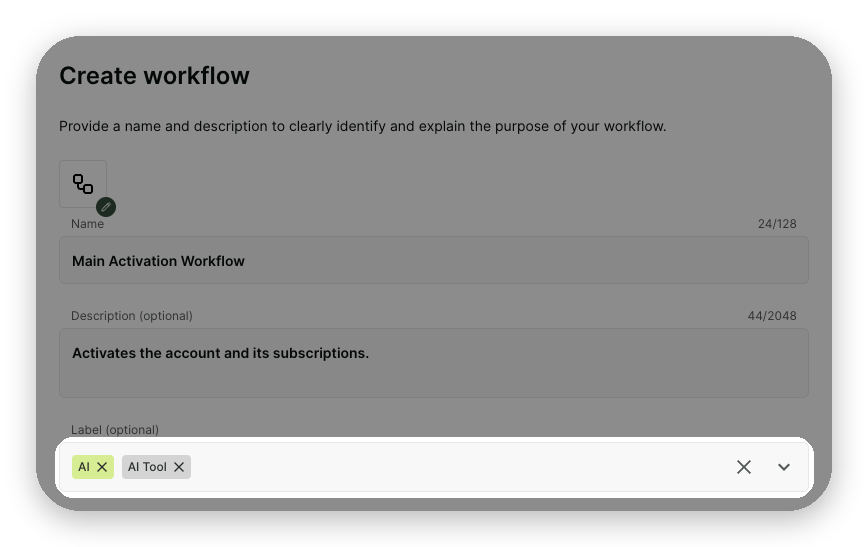
In the workflow creation form, find the Label field and click the selector to choose one or more labels. Each selected label appears as a colored tag. Complete the rest of the form and click Create to save.
On an existing workflow
You can add or change labels on a workflow after it's been created.
Open the workflow in the Workflow Builder.
Click the three-dot (⋯) menu in the top toolbar and select Edit workflow details.
In the Label field, add or remove labels using the selector.
Click Save.

See a workflow's labels
A workflow's labels appear as colored tags:
In the workflow's header, next to its name
In the Labels column of the Workflows, Workflow Executions and Custom Nodes tables, right after the name
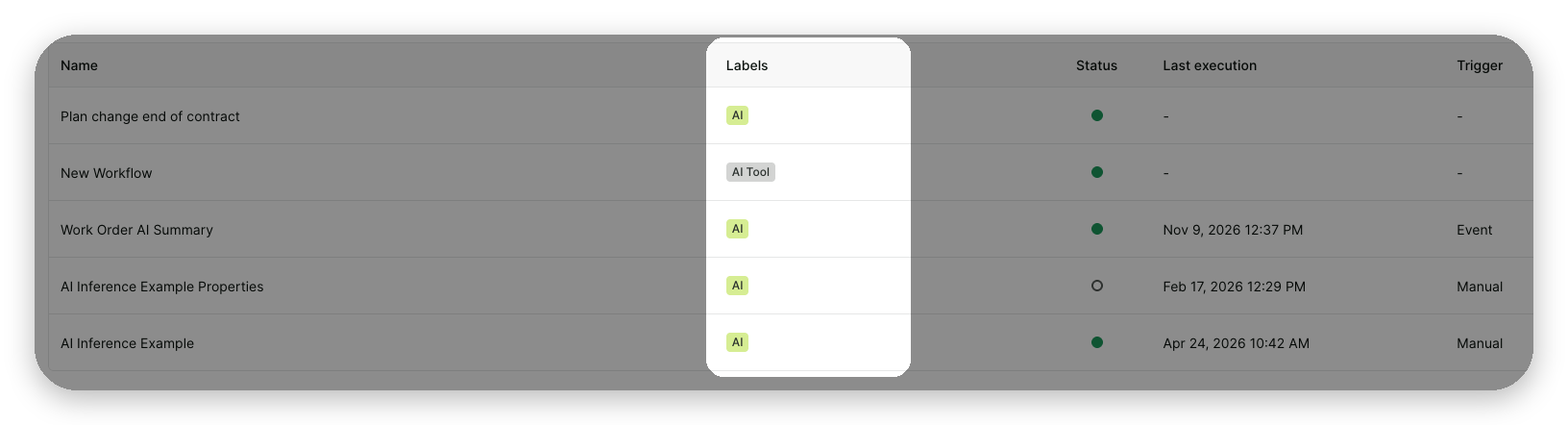
When there isn't room for every label, the extra ones collapse into a +N tag. Hover or click it to see them all.
Filter workflows by label
Once labels are assigned to workflows, you can filter the Workflows page by label to focus on a specific category.
On the Workflows page, click Filter.
In the filter panel, expand the Labels section.
Check one or more labels to apply the filter.
The workflow list updates to show workflows that have at least one of the selected labels.
The Labels section only appears in the filter panel if at least one label has been created in your environment.
The search box on the Workflows, Custom Nodes, and Workflow Executions pages also matches against assigned labels. Searching for a label name finds every workflow tagged with it, and every execution of a workflow tagged with it, even if the label name doesn't appear in the workflow's own name.
Delete a label
Before you can delete a label, it must be unassigned from all workflows. If the label is still in use, a message will appear letting you know — remove the label from all workflows first, then return here to delete it.
Go to
Workflows > Settings > Labels.Click the kabob (⋮) menu on the label you want to remove and select Delete.
Review the confirmation message and click Delete to confirm.
Deleting a label cannot be undone.