Products Translation
Last updated: November 4, 2026
Overview
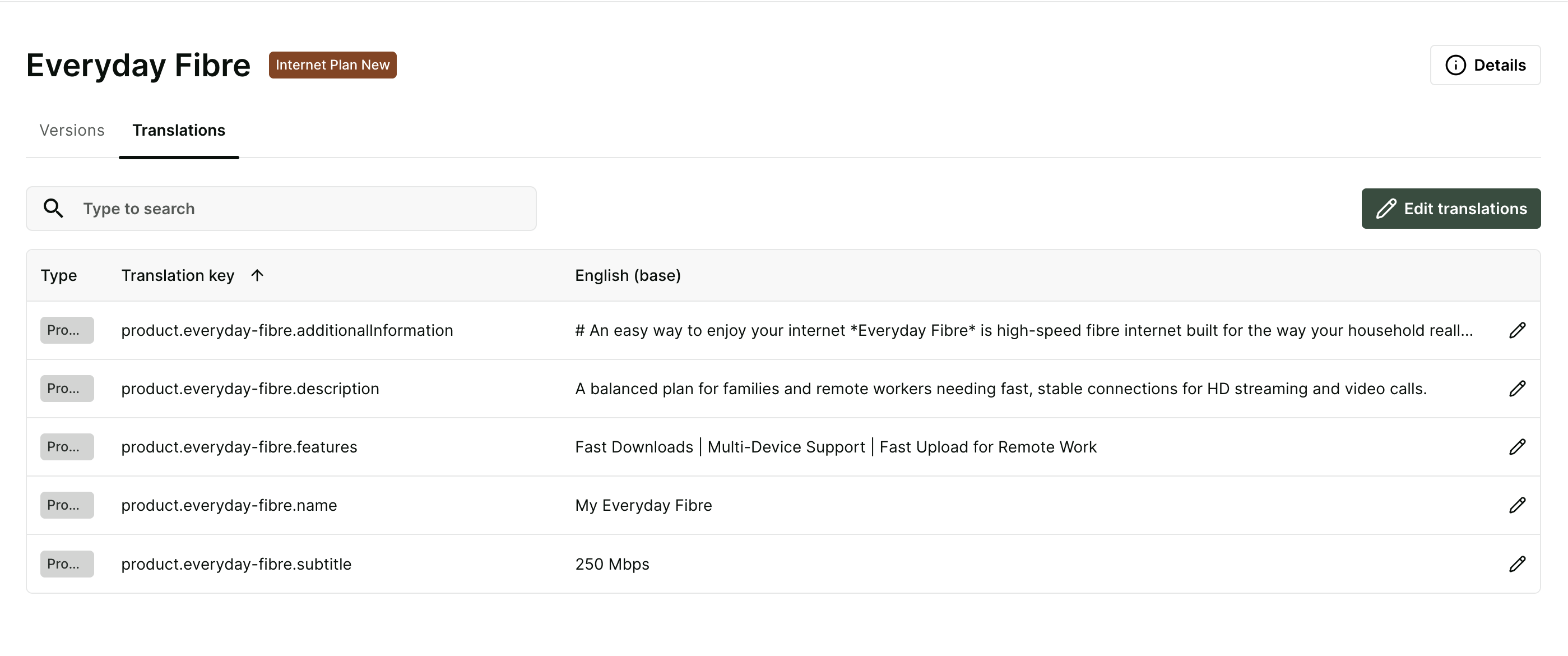
In gaiia, each product is assigned a number of translation keys, such as description and name. While these translation keys are internal identifiers, the translations bound to them are what customers see in various touchpoints, including the client portal, checkout, and invoices.
In this article, we'll be covering each product translation key, where it appears on the product tile in checkout, and how to edit translations per product or in bulk.
When you create a new product, only the base translation language is filled out by default. You can manually enter new translations for each of the translation keys, based on your available languages.
The translation displayed is based on the user's account language preference, or the selected website language. If a translation for a given product is not available in the selected language, its base translation is used instead.
The list of supported languages is not currently editable by your organization. If you need to apply modifications to the list, please contact us.
Customizing the product tile
Customers compare several product tiles side by side in checkout, so each translation key has a specific place on the tile. The example below shows how each key appears on the tile and in the Product details side panel.
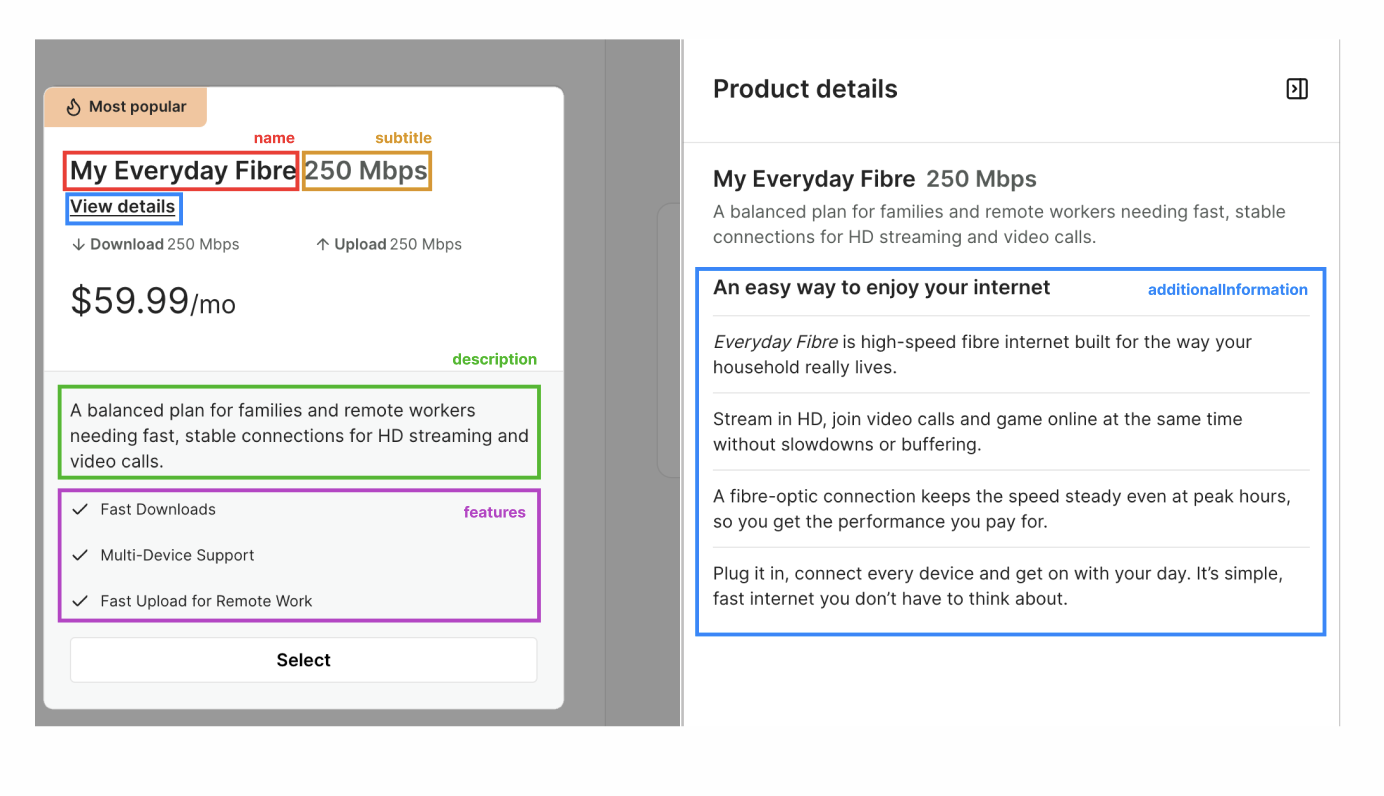
- name: The title at the top of the tile and the heading of the Product details side panel.
- subtitle: A short descriptor next to the product name, such as a speed ("250 Mbps"). It also appears next to the name in the Product details side panel. If no translation is set, nothing appears next to the name.
- description: One or two sentences below the price that explain who the product is for. It also appears below the name in the Product details side panel.
-
features: A checklist below the description. This key only affects the product tile in checkout. Separate each feature with
|, for example "Fast Downloads | Multi-Device Support". Each feature appears on its own line with a checkmark. If no translation is set, the checklist doesn't appear. - additionalInformation: Longer content behind a View details link below the product name. If no translation is set, the link doesn't appear.
Choosing what View details opens
The View details link opens different content depending on the value you enter in additionalInformation:
-
Text: Opens the Product details side panel with your text. You can format it with Markdown, for example
#for a heading or*text*for italics. - An image URL: Opens the image in a dialog.
- A web page URL: Opens the page in a new tab.
To open an image or a web page, enter only the URL, on a single line. Any other value appears as text in the side panel.
Editing product translations
Translations can be edited either on a per-product basis, or in bulk, where all products are shown in one place for easy editing.
Product translations can only be edited by users with the Product Catalog > Translations permission enabled.
Invoices are fixed in time, so updates to a product's translation are not retroactively applied. New invoices use the latest translation, based on a customer's preferred language.
- Navigate to the Products menu.
- Select the product you wish to edit.
- Click Translations.
- Click Edit translations.
-
Update the translation in the provided text fields for each of your supported languages.
If you have an issue viewing all the language columns, use the double-arrow button to open a separate window for this translation key.
- Click Save to apply the changes.
- Navigate to the Products menu.
- Click Settings.
- Select the Translations tab.
-
Click Edit all.
- Choose the translation keys and languages you wish to update.
-
Update each translation in the provided text fields.
If you have an issue viewing all the language columns, use the double-arrow button to open a separate window for this translation key.
- Click Save to apply the changes.