

Using Google Tag Manager in the Checkout
Overview
Google Tag Manager (GTM) is a free tool that simplifies the process of managing and deploying marketing tags on your checkout without requiring developers to modify the code. With GTM, you can add, update, and test tags like Google Analytics, Meta Pixel, or custom scripts.
gaiia offers a GTM integration that will embed your desired container in the checkout, allowing you to track visitors, events and orders.
Instructions
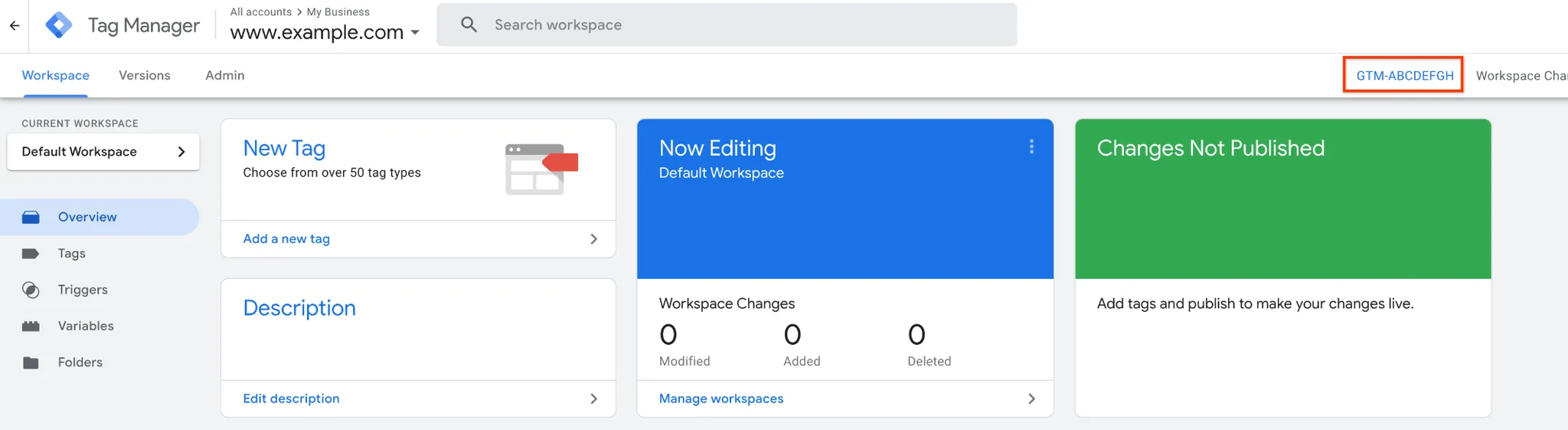
Step 1: Find your container ID
If you don’t already have a container, refer to the official GTM doc to create and setup your container: Tag Manager Help
Once the container has been created, take note of the container ID (which starts with 'GTM')
Step 2: Setup the GTM integration in gaiia
In gaiia, navigate to Settings → Integrations → App directory tab → Google Tag Manager → Install
From the “Connect Google Tag Manager” screen, enter your container ID in the field
Click Connect
Once connected, your container will be embedded on the checkout, and you will be able to inject tracking scripts that listen to the events pushed on the data layer and track them in your own systems.
Be cautious about third-party and custom scripts you include in your container, as invalid and misconfigured scripts can have undesired effects on your checkout. You are responsible for the scripts you embed and their effects.
While gaiia is happy to assist with the initial installation and setup of the integration, gaiia is unable to provide technical support for further configuration, troubleshooting, or customization of your GTM container. For additional assistance, gaiia recommends consulting the Google Tag Manager Help Center or your internal development team.
Object structure
The events will be pushed to the window.dataLayer object with the following structure:
{
  event: 'event.name',
  orderId: 'xxxx-xxxx-xxxx-xxxx',
  orderMetadata: {
    urlParams: {
      fbclid: 'value',
      anotherGetParam: 'value'
    },
  },
  isEmbedMode: false,
  flags: {
    useOnePageCheckout: false
  },
  currentStep: 'CHECKOUT_STEP_IDENTIFIER',
  cart: {
    internetPlan: {
      id: 'product-version-id',
      name: 'Displayed product name',
      slug: 'product-slug',
      currency: 'USD',
      isRecurring: true,
      isProductTaxInclusive: false,
      priceInCents: 8500,
      downloadSpeedInKbps: 25000,
      uploadSpeedInKbps: 800
    },
    internetPlanActivationFee: {
      id: 'product-version-id',
      name: 'Displayed product name',
      slug: 'product-slug',
      currency: 'USD',
      isRecurring: true,
      priceInCents: 400
    },
    internetRouter: {
      id: 'product-version-id',
      name: 'Displayed product name',
      slug: 'product-slug',
      currency: 'USD',
      isRecurring: true,
      isProductTaxInclusive: false,
      priceInCents: 8500,
    },
    residentialPhonePlan: {
      id: 'product-version-id',
      name: 'Displayed product name',
      slug: 'product-slug',
      currency: 'USD',
      isRecurring: true,
      isProductTaxInclusive: false,
      priceInCents: 8500,
    },
    mobilePhonePlan: {
      id: 'product-version-id',
      name: 'Displayed product name',
      slug: 'product-slug',
      currency: 'USD',
      isRecurring: true,
      isProductTaxInclusive: false,
      priceInCents: 8500,
    },
    televisionPlan: {
      id: 'product-version-id',
      name: 'Displayed product name',
      slug: 'product-slug',
      currency: 'USD',
      isRecurring: true,
      isProductTaxInclusive: false,
      priceInCents: 8500,
    }
  },
  monthlySubtotalInCents: 80000,
  monthlyTotalInCents: 90000
}
event- the event name, described in the list below,orderId- once the order ID is generated (starting at the start checkout/email capture step), this will be populated with the order UUID. will be undefined otherwise, and will be appended on all events.orderMetadata.urlParams- object with the URL parameters the checkout was invoked with. It will be appended to all events.isEmbedMode- true if the checkout URL contains/embed/orembed=trueand the checkout is loaded in an iframe, false otherwise. It will be appended to all events.flags.useOnePageCheckout- true if the single-screen checkout layout is used, false otherwise. It will be appended to all events.email- the prospect's email. It will be appended to all events once it is known.accountId/accountReadableId- the account's UUID and its Account ID. They will be appended to all events once the order is submitted.addressId- geo ID of the service address. It will be appended to all events once it is known.currentStep- identifier of the checkout step the event was fired on. Will not be appended to all events. Can be one of those values:PLAN_SERVICE_ADDRESS PLAN_FEATURED_SELECTION PLAN_INTERNET_PLAN_SELECTION PLAN_ROUTER_SELECTION PLAN_TELEVISION_PLAN_SELECTION PLAN_MOBILE_PHONE_PLAN_SELECTION PLAN_RESIDENTIAL_PHONE_PLAN_SELECTION PLAN_ADDITIONAL_SERVICES_SELECTION SETUP_START_CHECKOUT SETUP_ACTIVATION_DATE SETUP_MOBILE_PHONE_ACTIVATION SETUP_RESIDENTIAL_PHONE_ACTIVATION CHECKOUT_PERSONAL_INFORMATION CHECKOUT_PAYMENT_DETAILS REVIEW_CONFIRMATION SUCCESS_CLIENT_PORTAL_SIGNUPcart- details of the selected products (internetPlan,internetPlanActivationFee,internetRouter,residentialPhonePlan,mobilePhonePlanandtelevisionPlan). It will not be appended to all events.id- ID of the product-versionslug+name- slug/name of the productcurrency- currency code for the productisRecurring- true if the product is to be billed recurring, false if it's one-timeisProductTaxInclusive- true if the price is to be displayed with the tax included, false if it's displayed with the tax excludedpriceInCents- price for the product, in centsuploadSpeedInKbps/downloadSpeedInKbps- for internet plans only
monthlySubtotalInCents/monthlyTotalInCents- monthly total before and after taxes. It will not be appended to all events.
Events
The checkout pushes the events below to the data layer, grouped by the part of the checkout they relate to. Unless an event's description says otherwise, it includes currentStep, cart and the monthly totals.
Address and serviceability
Event | Event description |
|---|---|
| Pushed when the product availability query returned products, meaning the lead is qualified/eligible. Won't include the cart and totals. |
| Pushed when the product availability query returned no products for the address, and the address is not in a planned service area. Won't include the cart and totals. |
| Pushed when the prospect leaves its email for follow-up on the unserviceable address form. Won't include the cart and totals. |
| Pushed when the product availability query returned no products for the address, and the address is in a planned service area. Won't include the cart and totals. |
| Pushed when the prospect leaves their contact details on the planned service area form. Won't include the cart and totals. |
| Pushed when a prospect comes back through a link tied to a previously unserviceable address, and the address is now serviceable. |
| Pushed when the product availability query returns, listing which product types can be ordered at the address. Won't include the cart and totals. |
| Pushed when the prospect confirms the product types they want in the plan category side panel. Won't include the cart and totals. |
Plan and product selection
Event | Event description |
|---|---|
| Pushed when the internet plan selection is changed on the internet plan step. |
| Pushed when the router selection is changed on the router step. |
| Pushed when the mobile phone plan selection is changed to a different product. Won't include the cart and totals. |
| Pushed when the residential phone plan selection is changed to a different product. Won't include the cart and totals. |
| Pushed when the television plan selection is changed to a different product. Won't include the cart and totals. |
| Pushed once for each newly selected add-on. Won't include the cart and totals. |
Broadband facts labels
Event | Event description |
|---|---|
| Pushed when the side-panel with broadband facts is opened. |
| Pushed when an internet plan is selected in the side panel. |
| Pushed when a broadband facts label is viewed on the dedicated page via a permalink. Won't include the cart, totals, orderId, or current step. |
External purchase
These events are pushed when a plan tile sends the prospect to an external purchase link.
Event | Event description |
|---|---|
| Pushed when the prospect clicks the external purchase button and the confirmation dialog opens. |
| Pushed when the prospect cancels the confirmation dialog. |
| Pushed when the prospect continues from the confirmation dialog, and the external link opens in a new tab. |
Checkout steps
Event | Event description |
|---|---|
| Pushed when the checkout changes steps. Won't include the current step. |
| Pushed whenever the checkout changes step, resulting in the previous step being completed for the first time. Won't include the current step. |
| Pushed whenever the user goes back a step. |
Payment
Event | Event description |
|---|---|
| Pushed when a payment method is added in the billing details step. |
| Pushed when the payment method is cleared from the billing details step. |
Order
Event | Event description |
|---|---|
| Pushed when the order is resumed from an order resume link. |
| Pushed once, when every required step of the checkout is complete. |
| Pushed when the order is successfully submitted. |
| Pushed once, when the order succeeds and an account exists. |
| Pushed when the customer signs up for the client portal on the success screen. |
Attachments:
Tag_manager.png