Adding a contract to a Business Account
Last updated: November 6, 2026
Overview
Contracts keep a Business Account's signed agreements in one place, with their signature, effective and expiry dates. A contract is added by uploading the signed PDF and entering its details.
For an introduction to Business Accounts, see Business Accounts Overview.
Before you start
Only signed contracts can be added to a Business Account. Contracts cannot be sent to the customer for signature through gaiia or the client portal. Collect the signature first, for example by email or with an e-signature tool, then upload the signed PDF.
Viewing contracts requires the Business accounts > Contracts permission. Adding and editing contracts, and deleting unsigned ones, also requires edit access to contracts.
Contracts must be enabled for your organization. If Contracts does not appear in the Documents tab, contact gaiia support.
Business Account contracts are uploaded as signed PDFs. Contract templates are not available for Business Accounts.
Only one PDF can be uploaded per contract, up to 30 MB.
Contracts cannot be added from the mobile app.
Adding a contract
Open the Business Account from the Businesses tab.
Open the Documents tab, then Contracts.
Click
New contract.
In the Upload a signed contract PDF window, click
Select PDF fileand choose the file, or drag and drop it.
Fill in the contract details (see the table below).
Check I confirm that the uploaded contract is signed.
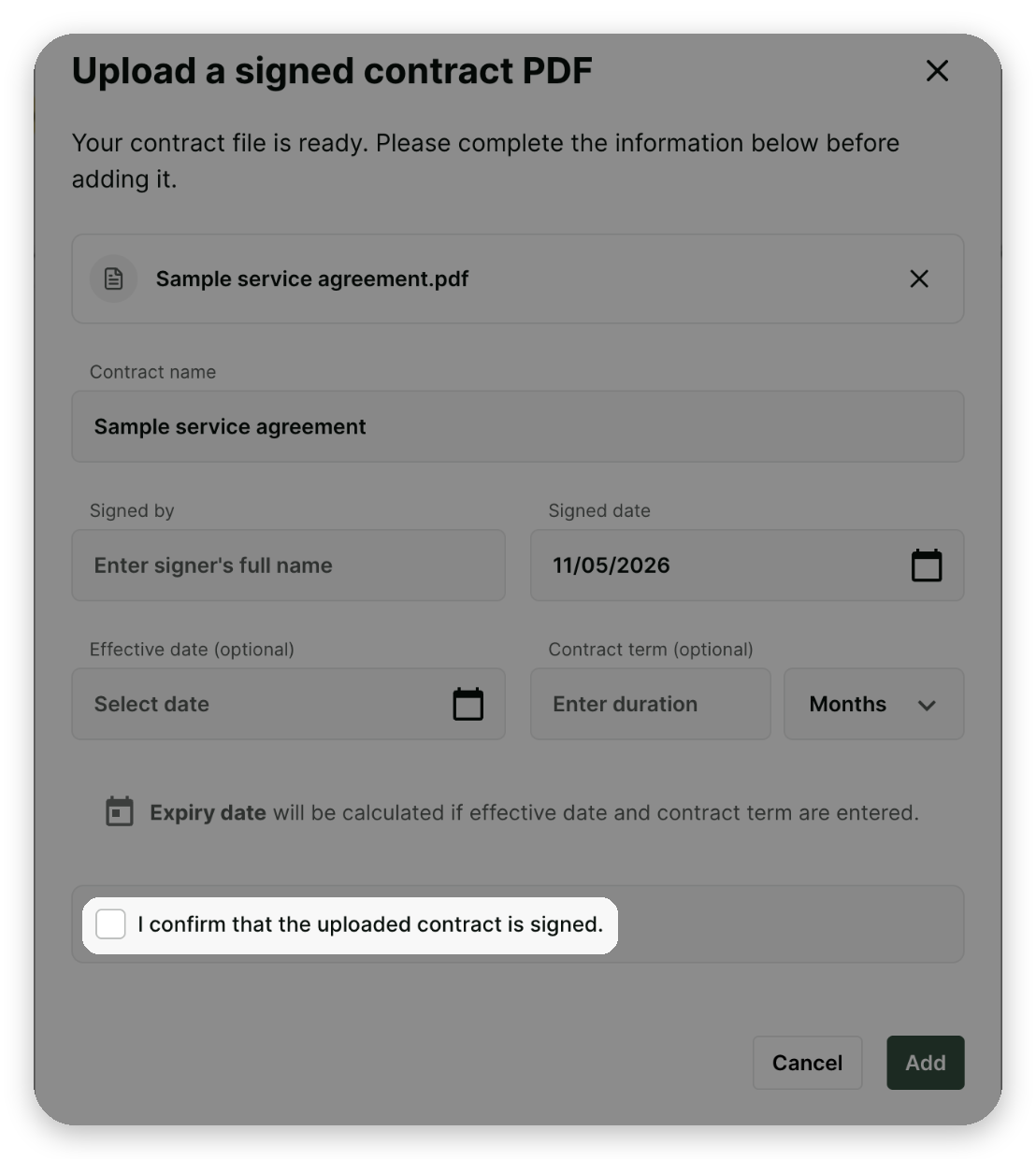
Click
Add.
Contract details
Field | Description |
|---|---|
Contract name | Required. Pre-filled from the file name. |
Signed by | Required. The full name of the person who signed the contract. |
Signed date | Required. Defaults to today and cannot be in the future. |
Effective date | Optional. The date the contract starts. |
Contract term | Optional. The contract's length, in months or years. |
When both an effective date and a contract term are entered, gaiia calculates the expiry date. A contract past its expiry date is flagged as expired.
Managing contracts
All of an account's contracts are listed under Documents > Contracts. The Contracts card on the account's Overview tab shows the three contracts expiring soonest; click See all to open the full list.
To edit a contract, open its options and select Edit details. The details can be changed, but the PDF cannot be replaced.
Deleting a contract depends on whether it is signed:
A "Not signed" contract can be deleted. Open its options, select Delete contract, then confirm. This permanently removes the contract and its history. If the customer was notified to review or sign it, they are told it was removed.
A "Signed" contract cannot be deleted. The Delete contract option does not appear for it.
Contracts uploaded to a Business Account are always signed, so they cannot be deleted, and their PDF cannot be replaced. Check the PDF and its details before you add the contract.