Sending and receiving attachments in SMS conversations
Last updated: November 6, 2026
Overview
You can send and receive photos, videos and other files in SMS conversations. Customers can text you a photo of their equipment, and you can send them a setup guide or a picture showing where a button is, without leaving gaiia.
This article explains how to attach files to a message, what you can send, how attachments appear in the thread, and what to know about the files customers send you.
Attachments only go through when both phone numbers on the conversation support MMS or RCS. Photos are the most reliable. Mobile carriers are more likely to reject other file types, such as PDFs and videos.
Sending attachments
You can attach files to a new conversation or to a reply. To attach files, do one of the following:
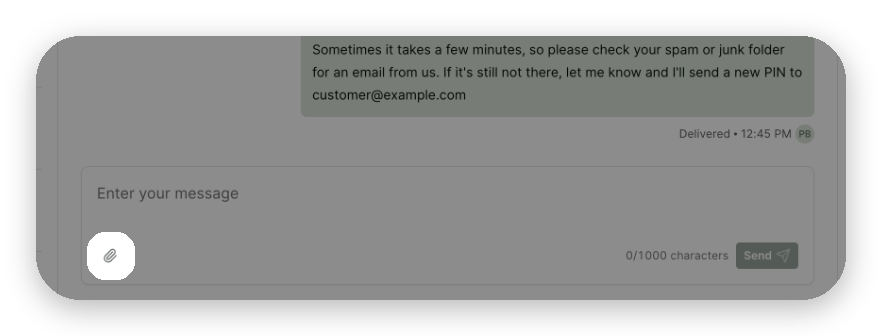
Click the Add attachment button (the paperclip) in the message box and select your files.
Drag the files onto the conversation and drop them.

Paste them into the message box.
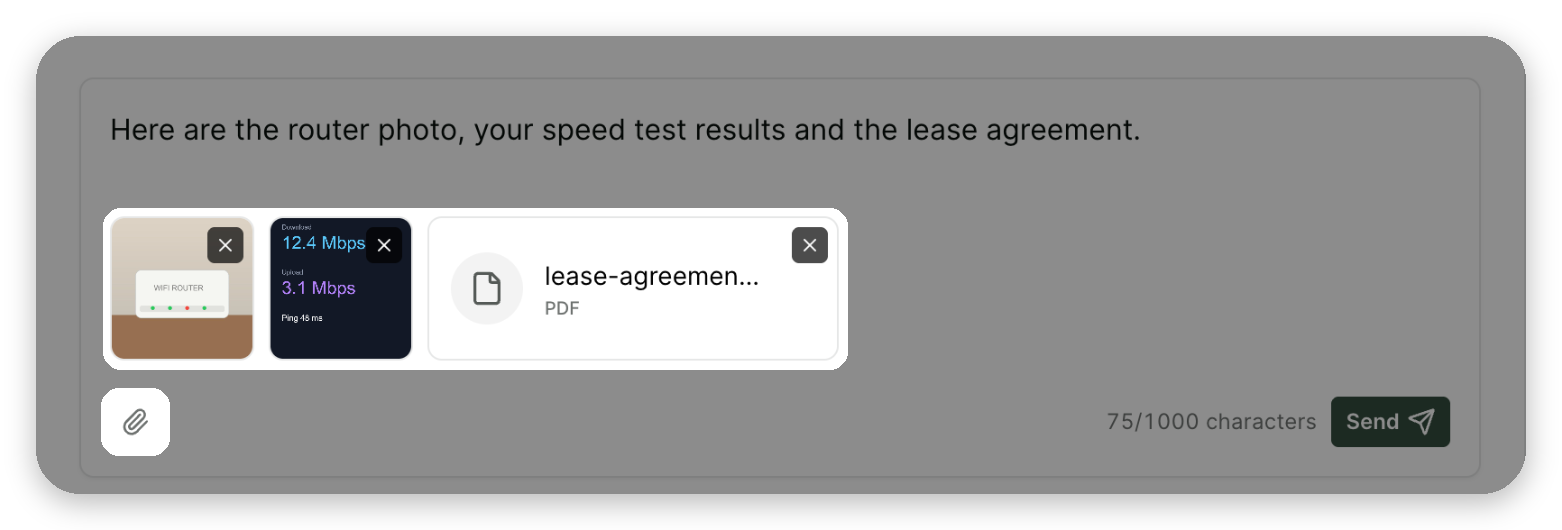
Attached files show as tiles above the message box. Click a tile to preview it, or click its × to remove it. Type a message if you want one, then click Send.
Limits for sending
Limit | Value |
|---|---|
Files per message | Up to 5 |
Total size | 600 KB for all the files in the message combined |
Photos | JPG, PNG, GIF, HEIC, HEIF |
Videos | MP4, MOV, 3GP, WEBM |
Documents | PDF, CSV |
gaiia checks your files as you add them and tells you when something doesn't fit:
Some attachments weren't included (max 5 files): you added more than 5 files. gaiia keeps 5 and leaves the rest out.
Some attachments weren't included (invalid file type): a file isn't in the list above.
Total uploaded files must be under 600 KB: remove a file or send a smaller version, such as a compressed photo.
An error occurred while trying to upload some attachments: try adding the file again.
A message with attachments follows the same delivery statuses as a text message. If it shows "Not delivered", click Show failure reason. A carrier rejection usually means the customer's phone or plan can't receive that file. Try sending a photo instead, or a link.
Viewing attachments in the thread
Attachments appear in the thread with the message they were sent with:
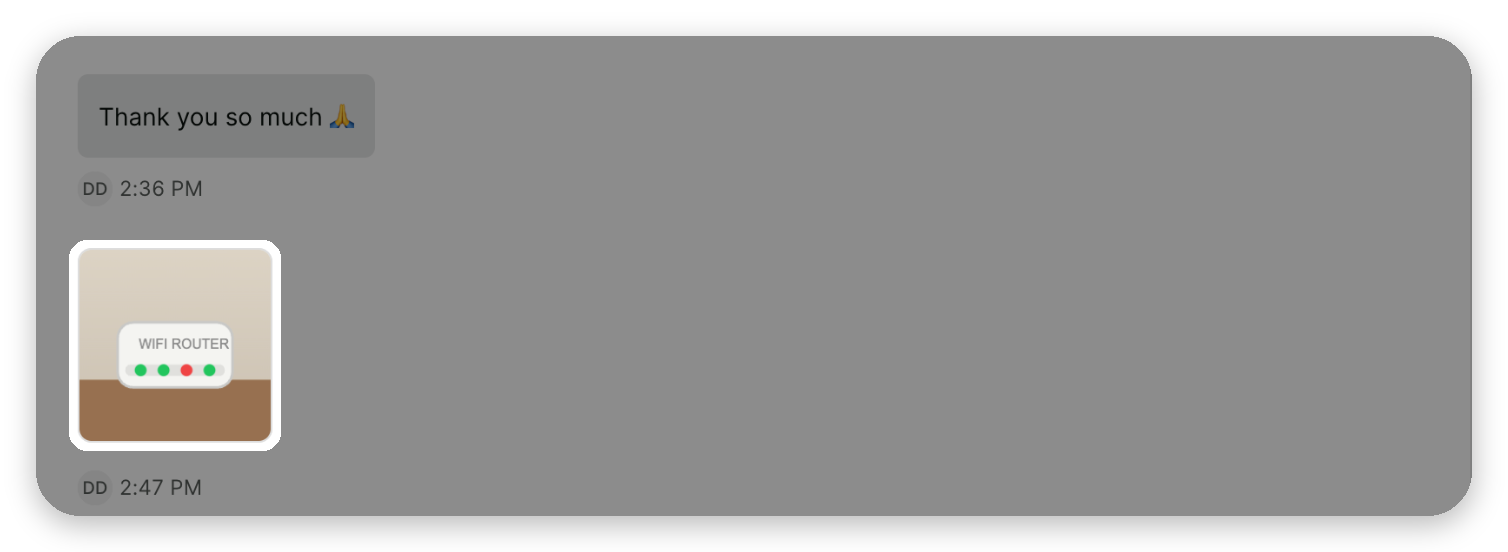
Photos and videos show as thumbnails. If there are more than fit on one line, the last thumbnail shows how many more there are, such as +2.
HEIC and HEIF photos show a placeholder thumbnail. Download them to view them.
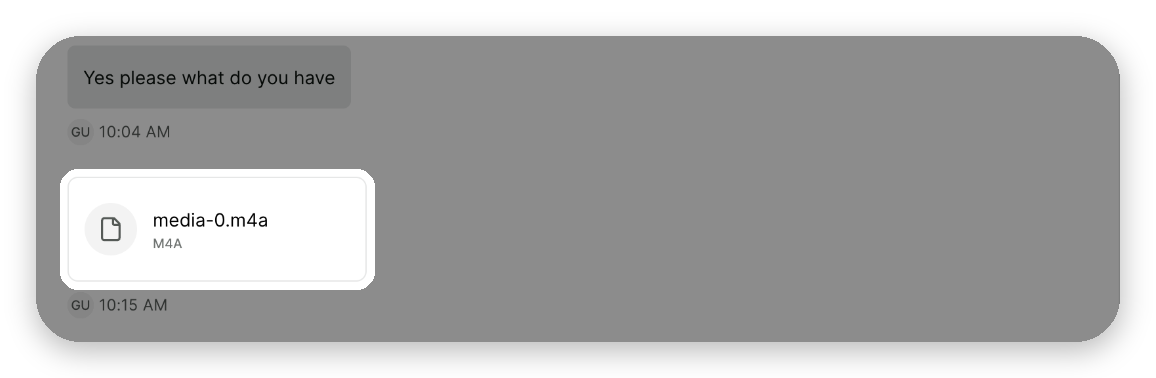
Other files, such as PDFs and audio messages, show as a tile with the file name and type.
Click an attachment to open the preview. From the preview, you can:
Download the file.
Open it in a new browser tab.
Use the arrows to move between all the attachments of the message.

You can also download an attachment without opening it: hover over its thumbnail or tile and click the download button.
For security, the link of an attachment opened in a new tab stops working after one hour. To view the file again, open it from the conversation in gaiia.
In the conversation list, a message with attachments and no text shows a preview such as "sent an attachment" or "sent 3 attachments".
Receiving attachments from customers
Customers can text you photos, videos, audio messages and PDFs. gaiia saves a copy of each file, so attachments stay available in the conversation.
Customers can send files up to 5 MB.
Customers can send up to 10 files in one text. gaiia shows them as one message per group of 5 files, in the order they were sent.
Supported files: JPG, PNG, GIF, HEIC and HEIF photos; MP4, MOV, 3GP and WEBM videos; M4A, MP3, OGG, AMR and AAC audio; and PDF documents.
Files in other formats, or files gaiia couldn't save, are skipped. The rest of the message still arrives. If every file was skipped and the customer sent no text, the thread shows "Attachments were not delivered because they are unsupported or could not be processed." Ask the customer to send the file again, as a photo if possible.