Configuring the Twilio (Conversations) integration
Last updated: November 12, 2026
Guide: Conversations
This article is part of a larger guide going over Conversations, the shared SMS inbox your team uses to text customers from gaiia.
Overview
The Twilio (Conversations) integration lets your team text customers directly from the Conversations page and receive their replies in the same thread.
This article covers what you need from Twilio, how to install the integration and connect your phone numbers in gaiia, and how to confirm the integration works as expected.
Twilio (Conversations) is a separate integration from the Twilio integration used for SMS notifications. Installing one does not install the other. Even if your organization already sends SMS notifications through Twilio, you need to install Twilio (Conversations).
Before you start
You need a Twilio account with at least one phone number that can send and receive SMS. If you don't have an account yet, create one at twilio.com.
The phone number your team texts from must already exist in your Twilio account, with SMS capability enabled. Make sure the number is set up to send and receive messages in every country you operate in.
Before an application like gaiia can use the number, it must be registered:
Long code (A2P 10DLC) numbers: in the United States, sending SMS from a 10-digit long code requires A2P 10DLC registration with Twilio. See Twilio's A2P 10DLC quickstart.
Toll-free numbers: toll-free numbers must be verified through the Twilio Console. See Twilio's toll-free verification guide.
Registration can take some time, so start it early.
Use two separate phone numbers for your sandbox and production instances. Messages cannot be migrated from sandbox to production.
If the number your customers know belongs to another phone provider, it may be possible to port it to Twilio for SMS only, provided your current provider forwards all SMS traffic to Twilio.
Setting up the integration
Setting up Twilio (Conversations) has four parts: starting the installation in gaiia, creating an API key in Twilio, copying your account credentials from Twilio, and adding your conversation numbers. Follow each section in order.
We recommend setting up the integration in your gaiia sandbox instance first, then repeating the process in production once testing is complete.
Installing an integration requires the Admin > Integrations > Edit permission.
A. Start the installation in gaiia
Go to the Settings page and select Integrations.
Open the App directory tab.
In the search bar, type Twilio. Two integrations appear: Twilio and Twilio (Conversations).
Click the
Installbutton on Twilio (Conversations).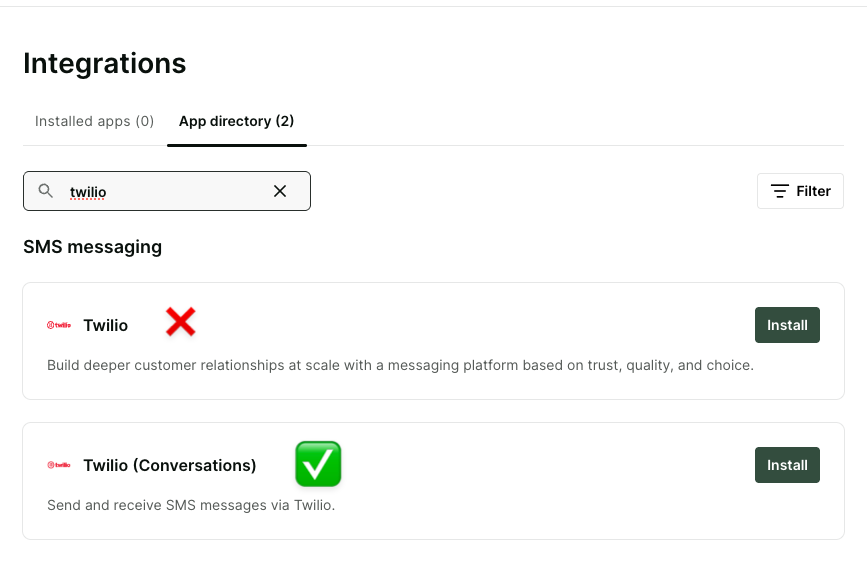
The installation form asks for four values: Account SID, Auth Token, API Key SID and Client Secret.
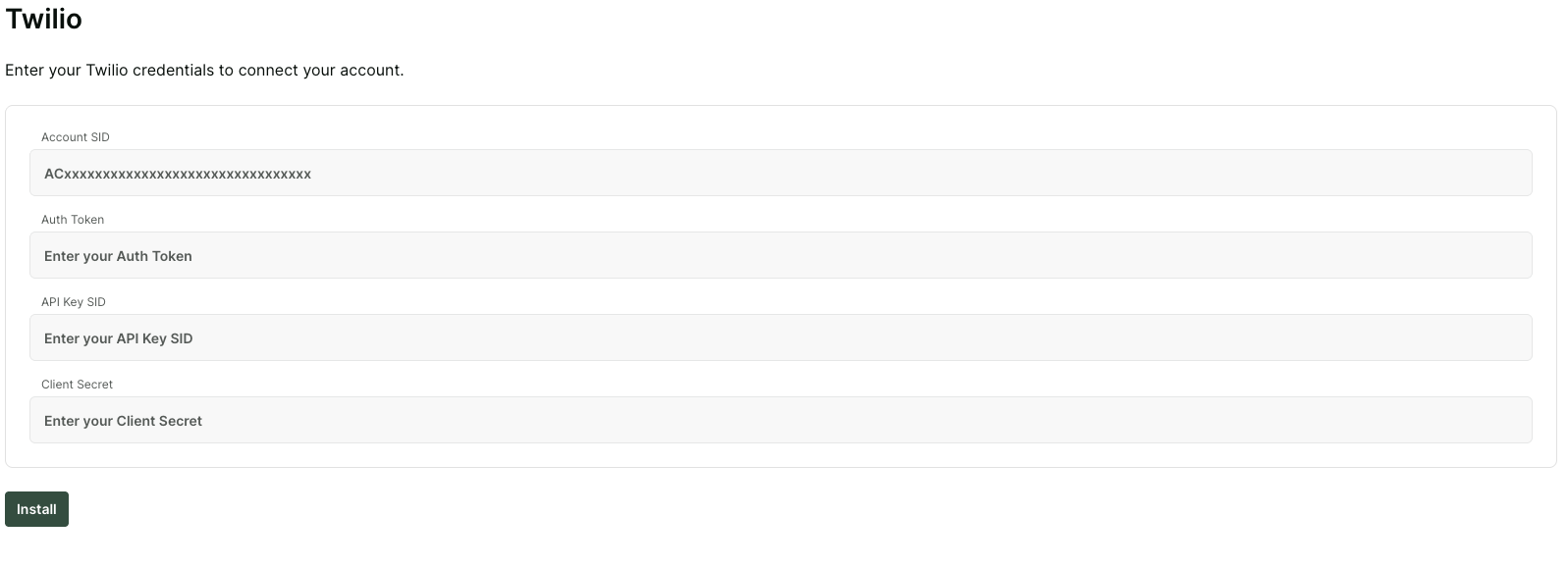
Keep this page open. You fill it in with the values from Twilio in the next two sections.
B. Create an API key in Twilio
A Standard API key is all gaiia needs. You do not need to create a Restricted key or select any permissions.
In a new browser tab, log in to your Twilio Console.
In the left menu, go to Builder tools > API keys & credentials.
On the API keys tab, click the
Create API keybutton.Give the key a name, for example "gaiia Conversations", and select Standard as the key type.
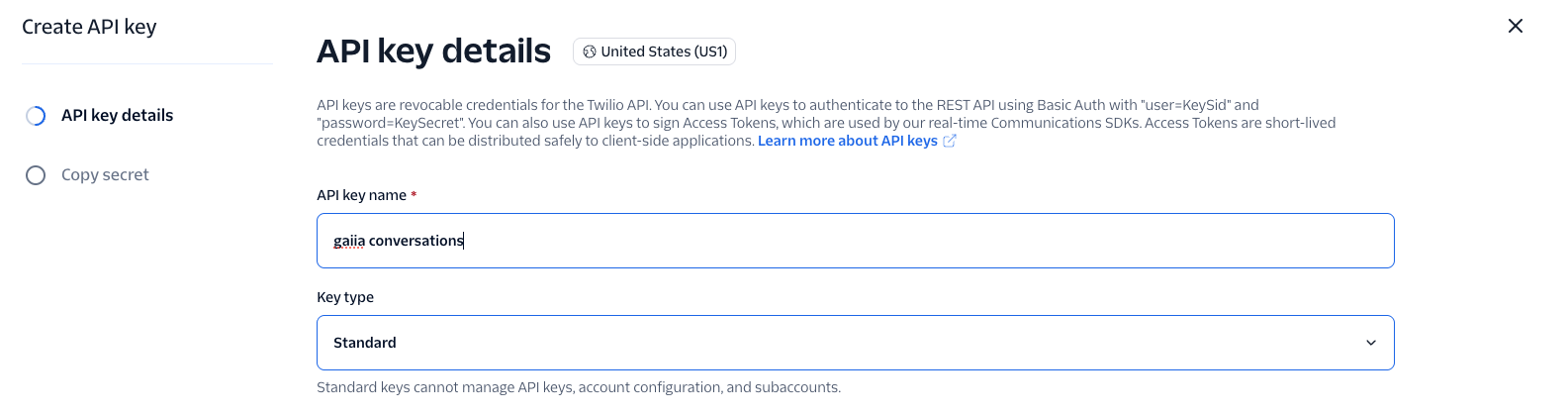
Create the key. Twilio displays the new key's SID and Client secret.
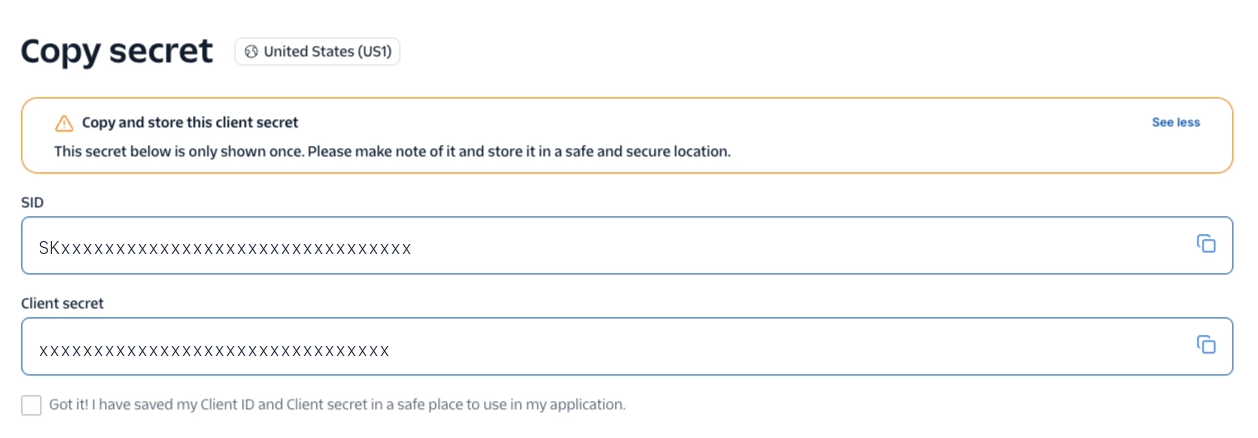
Copy the SID into the API Key SID field in gaiia.
Copy the Client secret into the Client Secret field in gaiia.
Twilio only displays the client secret once, so make sure it is in gaiia before you click
Finish.Back in Twilio, tick the checkbox confirming you have saved your key, then click
Finish.
C. Copy your Account SID and Auth Token
In Twilio, open the Auth tokens tab on the same page.
Copy the Account SID into the Account SID field in gaiia.
Copy the Primary auth token into the Auth Token field in gaiia.
You may need to reveal the token before you can copy it. Treat it like a password.
In gaiia, click the
Installbutton.
Once installed, Twilio (Conversations) appears in the Installed apps tab.
D. Add your conversation numbers
Your team cannot send messages until at least one number is added.
Go to the Settings page, select Integrations and open the Installed apps tab.
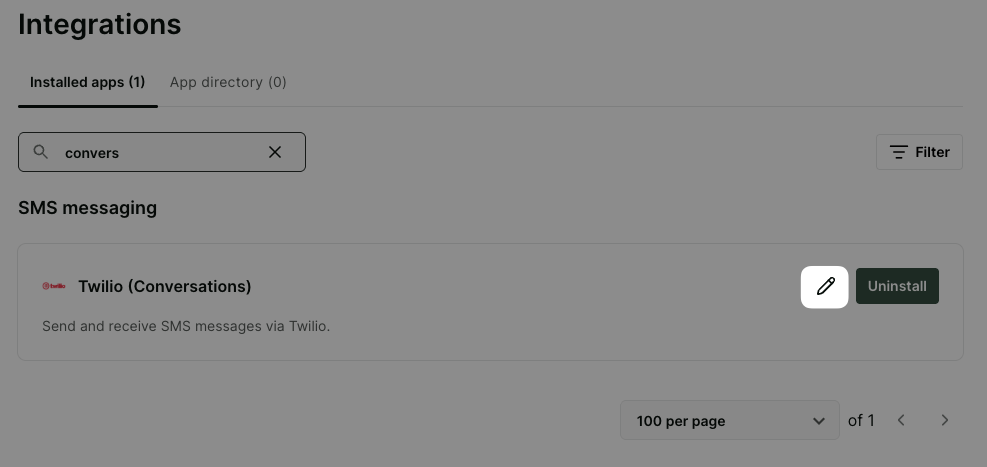
Find Twilio (Conversations) and click its pencil (Edit) icon. The integration's settings open, with a Conversations section and a Credentials section.
In the Conversations section, click the
Editbutton.Click
Add numberand select the phone number to use.The list is loaded directly from your Twilio account. Numbers that can't send or receive texts are shown as "Voice only" and can't be selected.
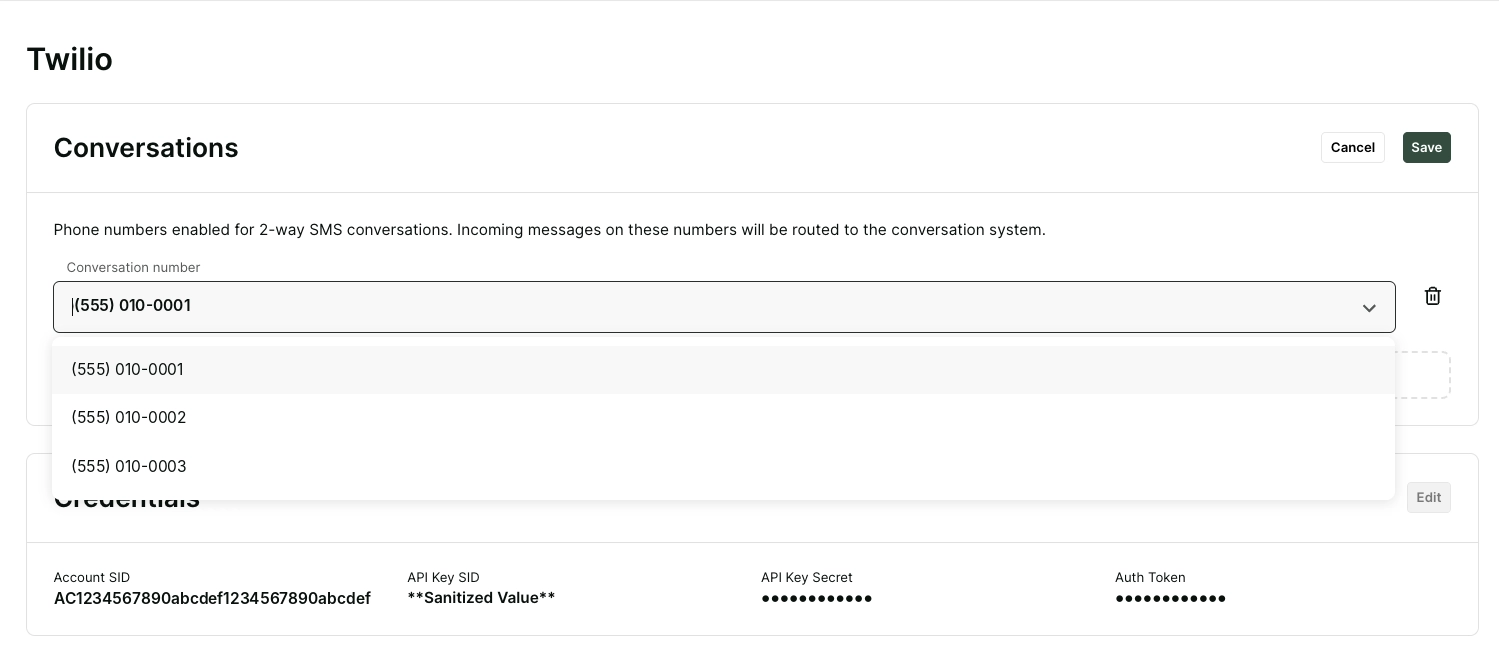
Repeat step 4 for each number your team should text from.
Click
Save.
If you add more than one number, your team picks which number to send from in the From field when starting a conversation.
Keep the following in mind when adding or removing numbers:
If replies to a number currently go to another system, gaiia shows "Replies to this number currently go to [address]. Saving redirects them to gaiia." Make sure nothing else depends on those replies before saving.
A number can only be used by one integration at a time. If it is already in use, gaiia shows "[number] is already used by another integration."
Removing a number stops its replies from reaching gaiia, and its existing conversations stop sending and receiving SMS. gaiia asks you to confirm before saving.
Numbers in a Messaging Service
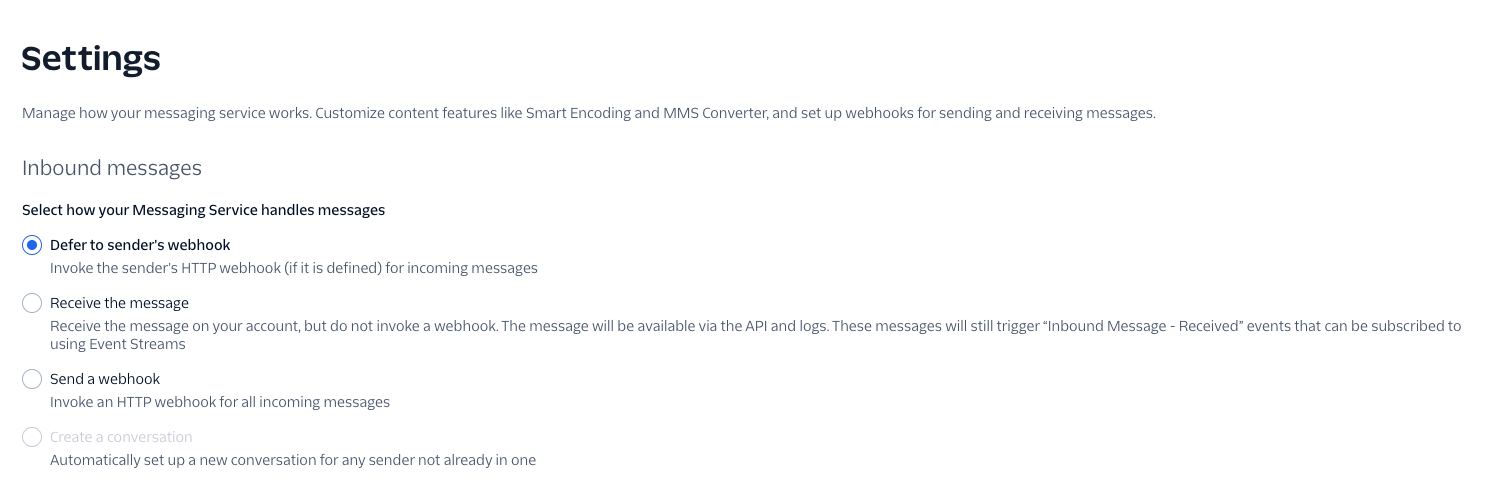
If you add a number that belongs to a Twilio Messaging Service that sends replies to a non-gaiia webhook, gaiia shows an Update Messaging Services in Twilio? dialog before saving. Confirming it sets the Messaging Service to "Defer to sender's webhook", so replies follow each number's own settings and reach gaiia.
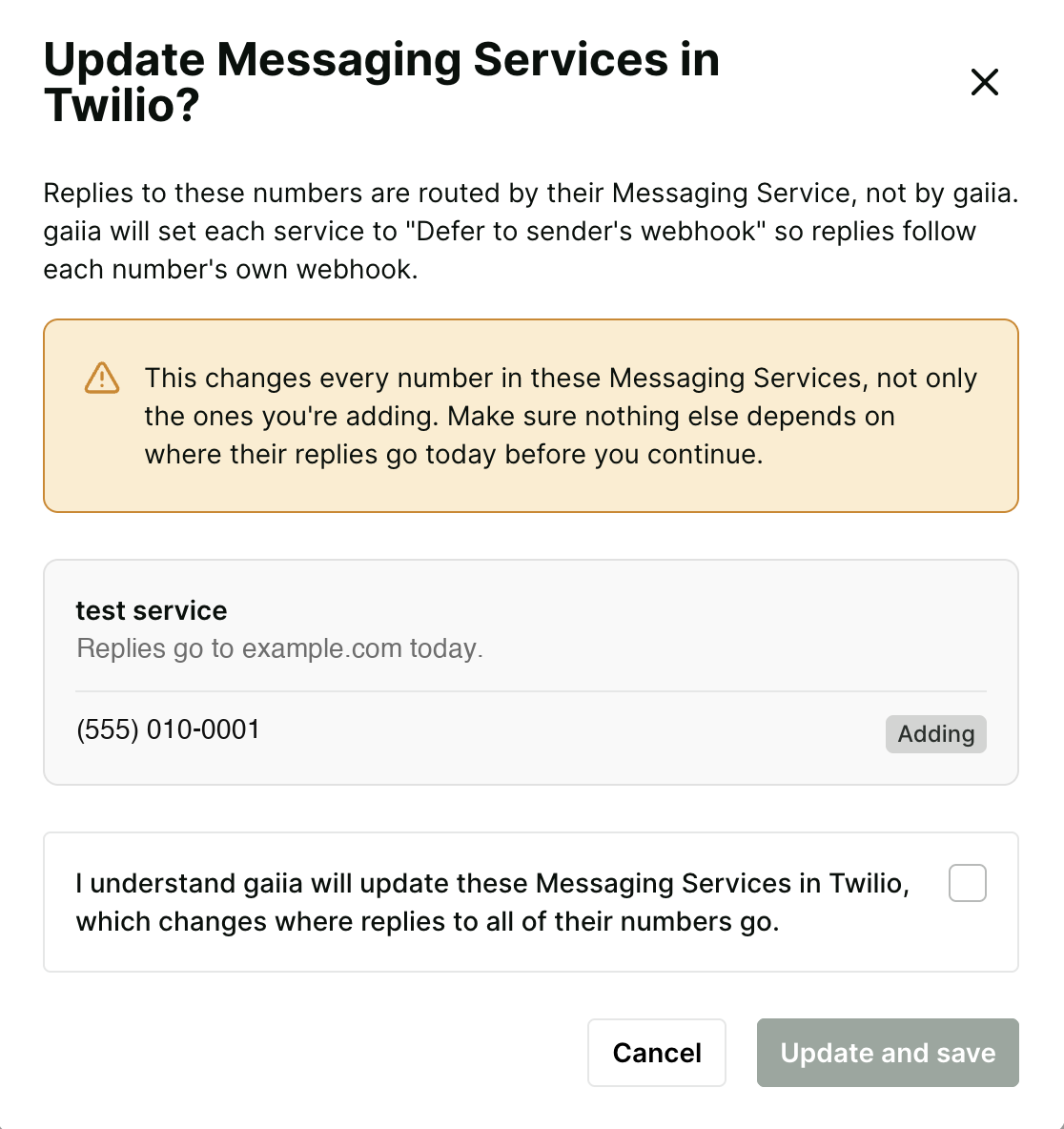
This change applies to every number in the Messaging Service, not only the ones you are adding.
gaiia never removes your numbers from their Messaging Service, so your A2P 10DLC registration is not affected. If you'd rather make the change yourself, open the Messaging Service in the Twilio Console and set it to "Defer to sender's webhook".
Confirming the integration works
In the Conversations section of the integration's settings, click the
Testbutton.Choose the From number, enter a To number you control in E.164 format, such as +15555555555, and type a message.
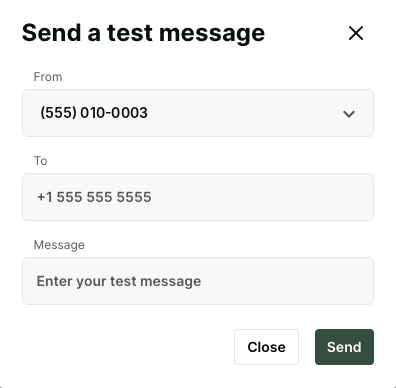
Click
Send.
The dialog shows "Delivered" once Twilio confirms delivery. If the message fails, the dialog shows Twilio's error along with a link to Twilio's error documentation.
Updating the integration
You can update this configuration at any time. Go to the Installed apps tab of the Integrations page and click the pencil (Edit) icon on Twilio (Conversations).
Conversation numbers: click the
Editbutton in the Conversations section to add, replace or remove numbers.Credentials: click the
Editbutton in the Credentials section. Secret fields are empty when you edit them. Leave a field empty to keep its current value, or enter a new value to replace it. If you create a new API key in Twilio, enter both its SID and its client secret.
Troubleshooting
If something is wrong with your Twilio setup, gaiia shows a warning at the top of the integration's settings. The most common ones are:
Warning | What to do |
|---|---|
"No SMS-capable phone numbers found in your Twilio account." | gaiia couldn't find a number with SMS enabled. Buy a number in Twilio, or check your credentials. |
"Twilio rejected the API Key SID or API Key Secret." | One or both values are incorrect, or the key was deleted in Twilio. Re-enter both in the Credentials section. If you no longer have the client secret, create a new API key in Twilio. |
"Twilio couldn't find this Account SID for this API key." | The API key belongs to a different Twilio account. Make sure the Account SID and the API key come from the same account. |
"[number] can no longer send or receive SMS in Twilio." | SMS was turned off for that number in Twilio. Turn it back on, or replace the number under Conversations. |
"[number] is no longer in your Twilio account." | The number was released or moved to another account. Replace or remove it under Conversations. |
"Replies to [number] go to [address] instead of gaiia because the [service] Messaging Service routes them." | A Messaging Service is overriding the number's settings. See Numbers in a Messaging Service above. |
"Couldn't finish setting up [number]. Save again to retry." | gaiia couldn't update the number in Twilio. Click the |