Starting and replying to conversations
Last updated: November 6, 2026
Overview
This article explains how to start a new SMS conversation with a customer, reply to an existing one, follow each message's delivery, and close a conversation once the customer's request is handled. It also covers what happens when a customer opts out of SMS.
Starting conversations and sending messages requires the Conversations > Edit permission.
Starting a new conversation
You can start a conversation from the Conversations page or from the Conversations tab of an account.
Click the
+button (New conversation) at the top of the conversation list.
In the To field, search by phone number, account or contact, then select the customer. For an account with several contacts, select the account, then pick the contact and phone number to text.
To text a number that isn't on any account, type the full number with its country code, such as +1, and select Send to this number.

If your organization has more than one SMS number, choose the number to send from in the From field.
Type your message. A message can have up to 1,000 characters.
Click
Send.
The conversation appears in the inbox and on the account's Conversations tab. Conversations you start from an account are linked to that account automatically.
When the customer already has an open conversation
If the customer already has an open SMS conversation, gaiia warns you before you send. Starting a new conversation closes all of that account's open SMS conversations, so in most cases you'll want to click Go to latest conversation and reply there instead.

Replying to a conversation
Open the conversation, type your reply in the message box at the bottom of the thread and click Send. Replying to an unassigned conversation assigns it to you.
Each message you send shows its delivery status under it:
Status | Meaning |
|---|---|
"Sending" | gaiia is handing the message to your SMS provider. |
"Sent" | The provider accepted the message and sent it to the carrier. |
"Delivered" | The carrier confirmed the message reached the customer's phone. |
"Read" | The customer opened the message. Only some channels report this. |
"Not delivered" | The message failed. Click |
gaiia checks open conversations for new messages every few seconds, so customer replies show up without refreshing the page. When new messages arrive while you're scrolled up, click Latest to jump to the bottom of the thread.
Closing a conversation
Close a conversation once the customer's request is handled.
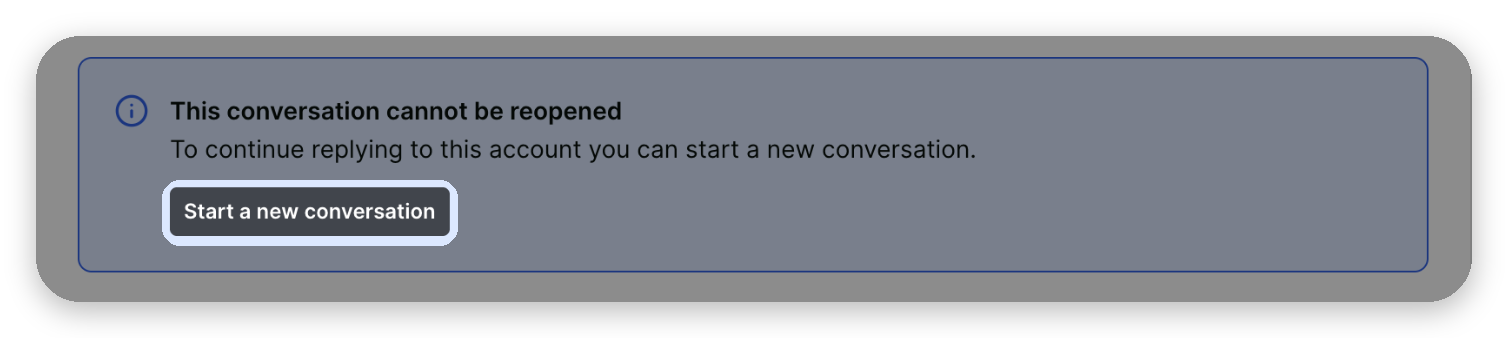
Closed conversations are read-only and can't be reopened. If the customer texts again, gaiia starts a new conversation.
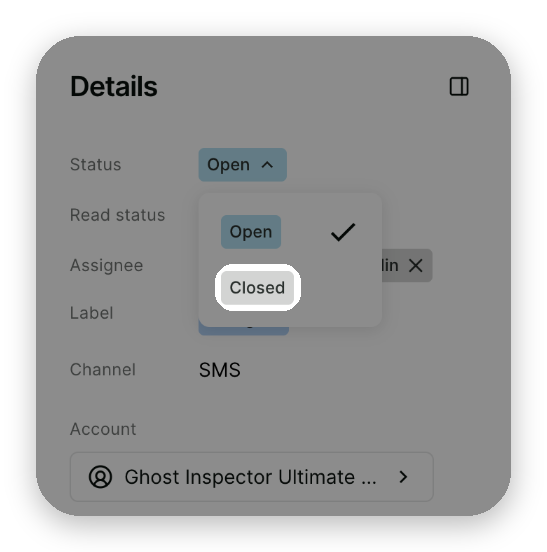
In the Details panel, click the Status menu and select Closed.
Click
Close conversationto confirm.
To reach a customer after their conversation is closed, open the closed conversation and click Start a new conversation.
When a customer opts out
When a customer replies STOP, they opt out of SMS from your number:
The thread records that the customer opted out, and their conversation card shows a messages-off icon.
A notice replaces the message box, so your team can't send them more messages.
Automated SMS notifications from the same number stop too.
Only the customer can opt back in, by replying START. The thread then records that they opted back in, and your team can text them again. For every keyword that opts a customer out or back in, see Replying STOP to a text message in How to Opt-in/Out of SMS Communications.