Conversations - Overview
Last updated: November 12, 2026
Guide: Conversations
This article is part of a larger guide going over Conversations, the shared SMS inbox your team uses to text customers from gaiia.
Overview
Conversations lets your team text customers directly from gaiia. Your team texts customers over SMS. Calls handled in your phone system can also be imported, so you can read them next to your SMS conversations. See Imported conversations.
You can work in Conversations from two places:
The Conversations page, a shared inbox for every conversation in your organization.
The Conversations tab on an account, which lists every conversation with that account. This tab also works on tablets and phones.
The Conversations page also works on tablets and phones. On a narrow screen, it shows one panel at a time, and the inbox opens from a side drawer.
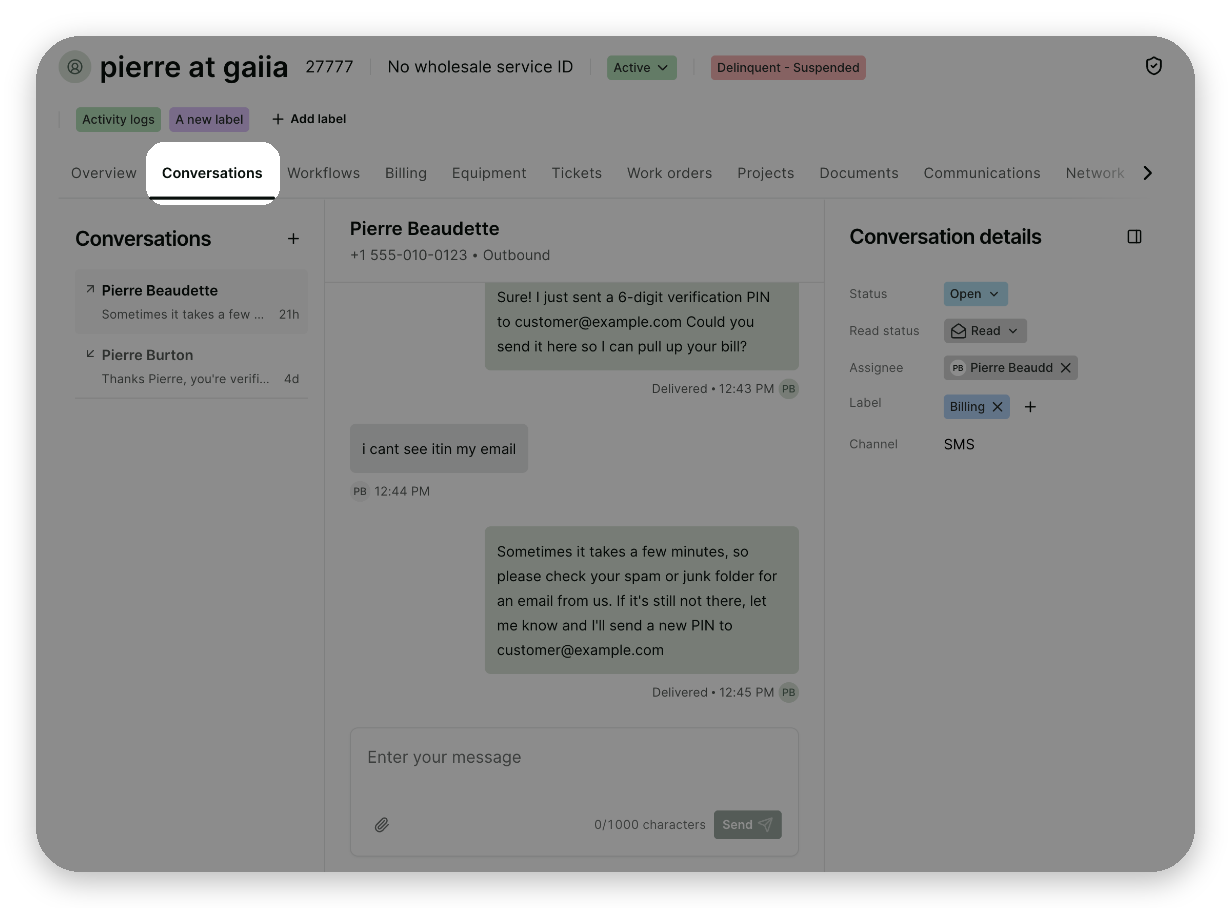
This article explains what you need before you start, who can use Conversations, and where to find each part of the module. The other articles in this collection cover each task in detail.
Before you start
Conversations sends and receives SMS through Twilio, so your organization needs a Twilio account with a registered SMS number. You can use the same Twilio account and number that gaiia already uses for your automated SMS notifications.
If Twilio isn't connected, the Conversations page shows a Twilio integration is needed to send messages notice and the message box is turned off. Administrators can click Manage Twilio settings to connect it. For the setup steps, see Configuring the Twilio (Conversations) integration.
If your organization has more than one SMS number, your team can pick which one to send from each time they start a conversation.
Permissions
To view conversations, users need the Conversations > View permission. To start conversations, send messages and change a conversation's details, users need the Conversations > Edit permission.
To check a role's permissions, go to Settings > Roles and open the Conversations section. See Roles and Permissions for more information.
How conversations work
A conversation is one SMS thread between one of your SMS numbers and one customer phone number.
Inbound conversations are started by the customer texting your number. Outbound conversations are started by your team.
gaiia links each conversation to the account whose contact matches the customer's phone number. If the match is wrong or missing, you can link or unlink the account yourself.
Every conversation is either "Open" or "Closed". Closed conversations are read-only and can't be reopened. If the customer texts again, gaiia starts a new conversation.
Each conversation can have one assignee and any number of labels, which you use to route and sort your team's work.
When a customer replies STOP, they opt out of SMS and your team can't text them until they reply START.
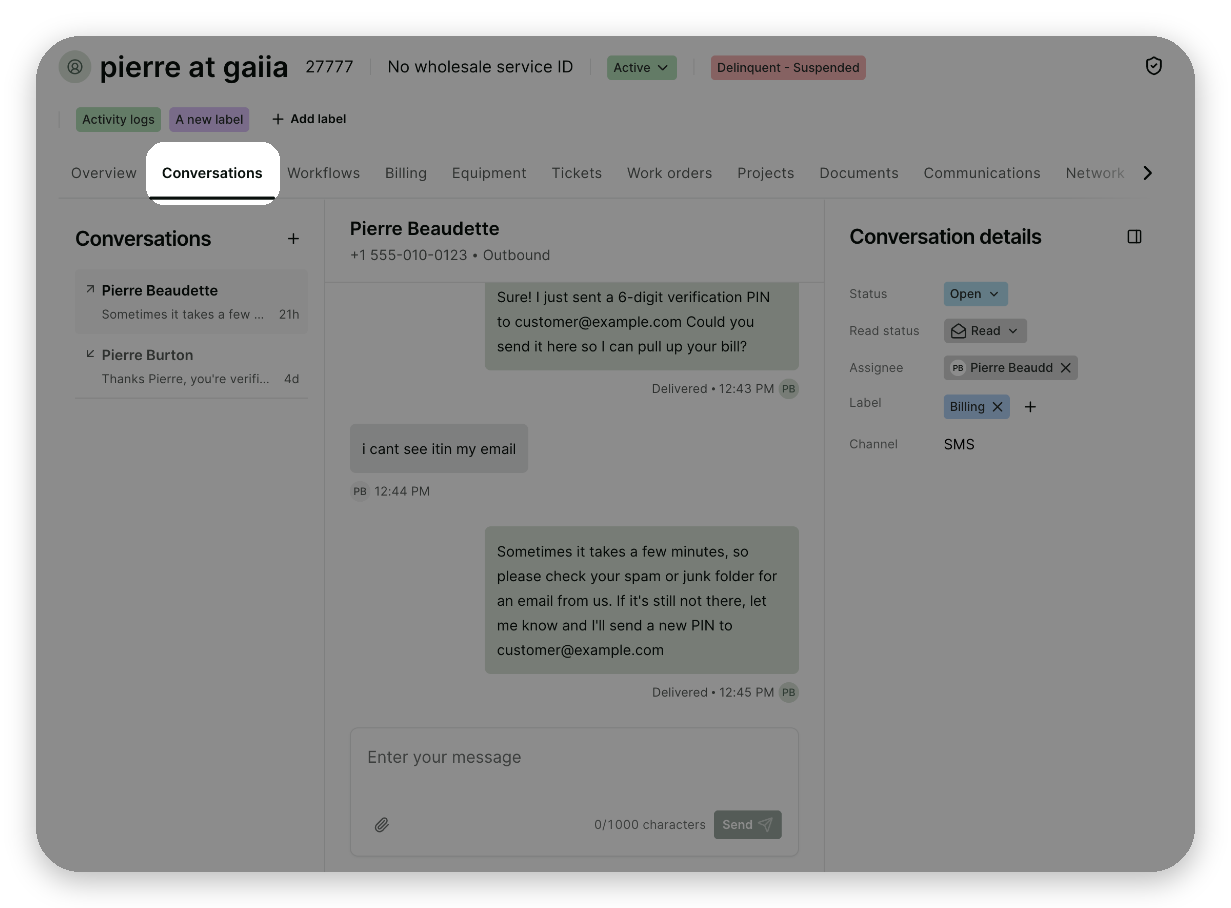
The account's Conversations tab
Every account has a Conversations tab that lists the conversations with that account's contacts. You can read and reply to them, change their details, and start a new conversation without leaving the account.
Imported conversations
If your organization moved to gaiia from another messaging platform, your past conversations may have been imported. Imported conversations show an Imported tag. You can read them, but you can't reply to them from gaiia. The Details panel shows the original provider, its URL and the conversation's external ID, and the View in link opens the conversation in that platform.
Phone systems, such as Five9, can also send finished calls to gaiia through the gaiia API. Each call appears as an imported conversation, with the same Imported tag. When the call comes with a summary, it is shown in an AI summary card.
An imported conversation shows the notice This conversation was imported from followed by the provider's name, and Replies aren't available here. Its provider, URL and external ID are listed under Imported conversation details in the Details panel.