Managing the Conversations inbox
Last updated: November 6, 2026
Overview
The Conversations page is your team's shared SMS inbox. This article explains how the inbox is organized, how to assign, label and track conversations from the Details panel, how to spot customers who are waiting for a reply, and how to filter, sort and move around the inbox with the keyboard.
Navigating the inbox
The left panel splits conversations into three inboxes:
Your inbox: conversations assigned to you.
All: every conversation in your organization.
Unassigned: conversations with no assignee. Replying to an unassigned conversation assigns it to you.
Each inbox shows how many open conversations it holds. Use the status menu at the top of the list to switch between "Open" and "Closed" conversations. Each inbox remembers its own status and sort choice.

To give the thread more room, collapse the inbox panel with the icon next to Inbox, and the Details panel with the icon next to Details.
Working with the Details panel
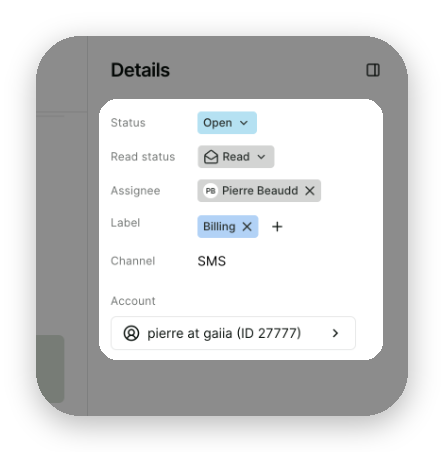
Selecting a conversation opens the thread in the middle and the Details panel on the right. From the Details panel, you can:
Change the Status. See Starting and replying to conversations to learn what closing does.
Mark the conversation as "Read" or "Unread" with Read status.
Change the Assignee, or remove it to put the conversation back in Unassigned.
Add or remove Labels. Each change is recorded in the thread, with who made it and when.
Use Link account or Unlink account if the conversation isn't matched to the right account, and open the linked account.
See the customer's email, mobile number, physical and mailing addresses.
To rename a conversation, click its title at the top of the thread. Titles can have up to 128 characters.
Seeing who's waiting for a reply
When a customer sends a message and nobody has replied yet, their open conversation shows a Waiting tag on its card, such as Waiting 2h. Hover over the tag to see the exact wait time.
The tag changes color as the wait grows:
Yellow: the customer has waited past your first threshold.
Orange: the customer has waited past your second threshold.
Red: the customer has waited past your longest threshold.
The tag only appears once the wait passes the first threshold, so short waits don't show a tag. It clears as soon as someone replies or closes the conversation. Each organization has its own threshold for each color. To change yours, contact gaiia.
Sorting the inbox
By default, the conversations with the latest message are at the top. To handle the customers who have waited the longest first:
Click the sort icon above the conversation list.
Select Longest wait.
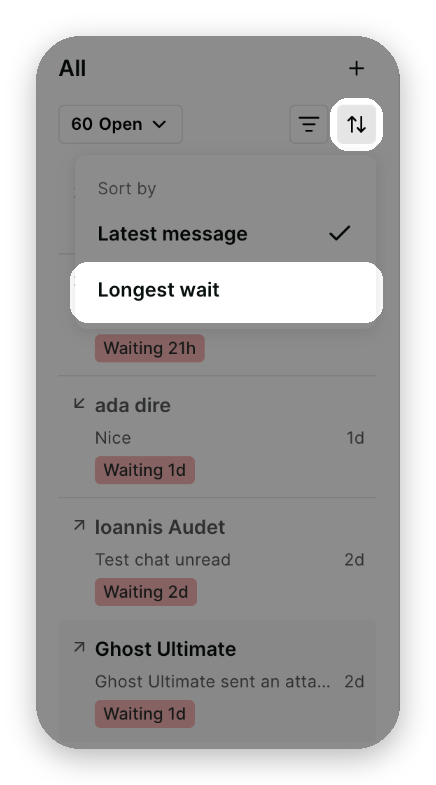
Select Latest message to go back to the default order. Sorting is only available when you're viewing "Open" conversations.
Filtering the inbox
Click the filter icon above the conversation list to narrow it down:
Direction: Inbound shows conversations the customer started. Outbound shows conversations your team started.
Labels: shows conversations with any of the labels you select.
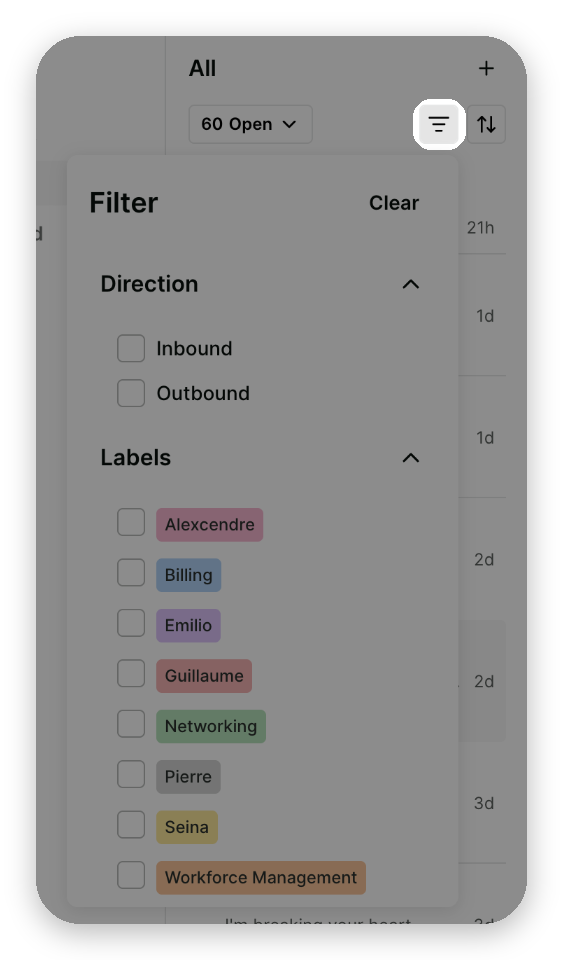
Filters apply on top of the inbox and status you've selected. Click Clear to remove all filters.
Using the keyboard
You can work through the inbox without the mouse:
Key | What it does |
|---|---|
| In the list, opens the next or previous conversation. In the thread, scrolls the messages by a page. |
| In the list, jumps 10 conversations down or up. |
| In the list, jumps to the first or last conversation. |
| From the list, puts your cursor in the message box so you can reply. |
| Moves between the inbox panel and the conversation list. |
| Steps back out, for example from the thread to the list. |
A conversation you skim past with the arrow keys is only marked as read once it stays open for a moment, so moving down the list doesn't mark everything as read. See Keyboard and Platform Shortcuts for the shortcuts available everywhere in gaiia.