

Business Accounts Overview
Guide: Business Accounts
This article is part of a larger guide going over Business Accounts.
Overview
Business Accounts provide a dedicated space for managing high-value commercial, government, education, and healthcare customers. They separate your commercial and residential operations, making it easier to manage complex services and circuits while delivering enterprise clients the level of care they expect.
Business Accounts help you:
Improve service quality for high-value accounts.
Empower account managers, network teams, customer support, and finance with real-time visibility into key customer data.
Streamline operations by separating commercial and residential workflows.
Simplify multi-location account management.
This article covers the permissions that control Business Accounts, how to create a Business Account, the account overview page, and how to filter the Business Account table.
To start using Business Accounts, please reach out to your account manager or support@gaiia.com.
Permissions
Business Accounts are controlled by the Business accounts permission.
Several sub-permissions offer more granular control:
Sub-permission | Controls |
|---|---|
| Which users can view and modify billing settings on a Business Account. |
| Who can view or upload contracts to an account. |
| Who can update general account information such as contacts, account manager, and communication preferences. |
| Who can modify the account's status. |
| Basic visibility of Business Accounts. |
| Who can run workflows on a Business Account. |
Coming soon: A dedicated Notes permission and a dedicated Documents permission. Until these are available, users need the Account > Edit permission to manage notes and the Account > Documents > Edit permission to manage documents.
Creating a Business Account
Follow the steps below to create a new Business Account.
Business Accounts cannot be created through checkout. They must be created manually or imported from a CRM such as HubSpot or Salesforce.
Navigate to the Businesses tab and click the
New Accountbutton.Determine the type of customer
For a single-location customer, create a standalone Business Account. For a multi-location customer, create a Parent Account — additional locations are added later as Sub-Accounts.
Enter the Account Name (used for invoices).
Add the Serviceable Address (the billing address can be added later).
Add the Primary Contact
This contact receives billing communications.
(Optional) Assign an Account Manager.
Select the services to add
Only recurring subscription products can be added at this stage; one-time fees can be added later.
Review all details and click the
Confirmbutton to create the new Business Account.
Business Account overview page
The account overview page displays all the key information you need at a glance.
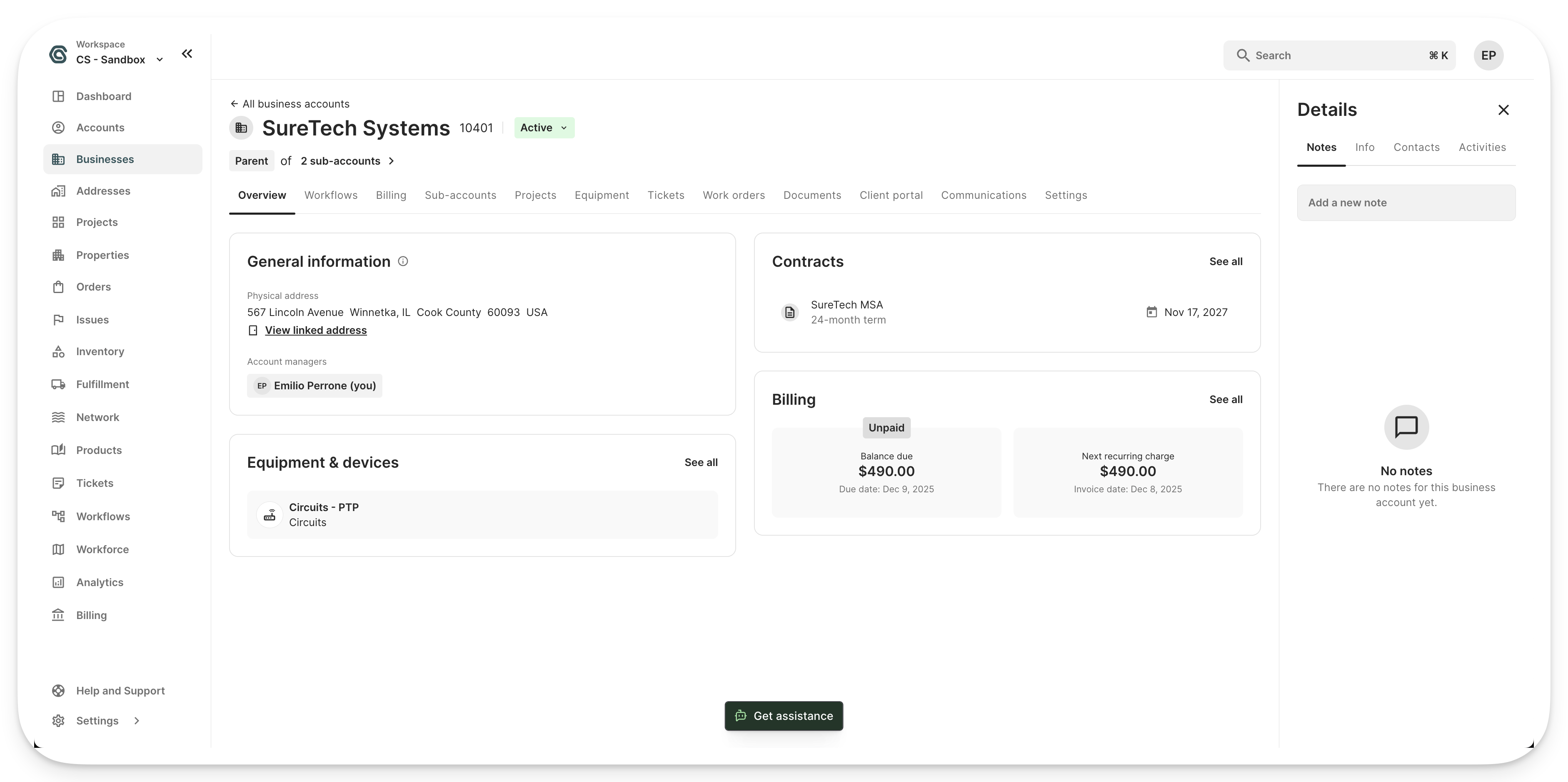
Section | Description |
|---|---|
General information | Displays the serviceable address and assigned account manager. |
Contracts | Displays the five most recent contracts added to the account. |
Equipment and devices | Displays assigned equipment and circuit information when configured. |
Billing | Displays the current balance and next recurring charge, including subscriptions paid by Parent Accounts for Sub-Accounts. |
Products (coming soon) | Will display subscribed products, recurring monthly charges (MRC), and service details such as Circuit ID. |
Filtering the Business Account table
The Business Account table can be filtered so you can quickly find the list of accounts you need to review.
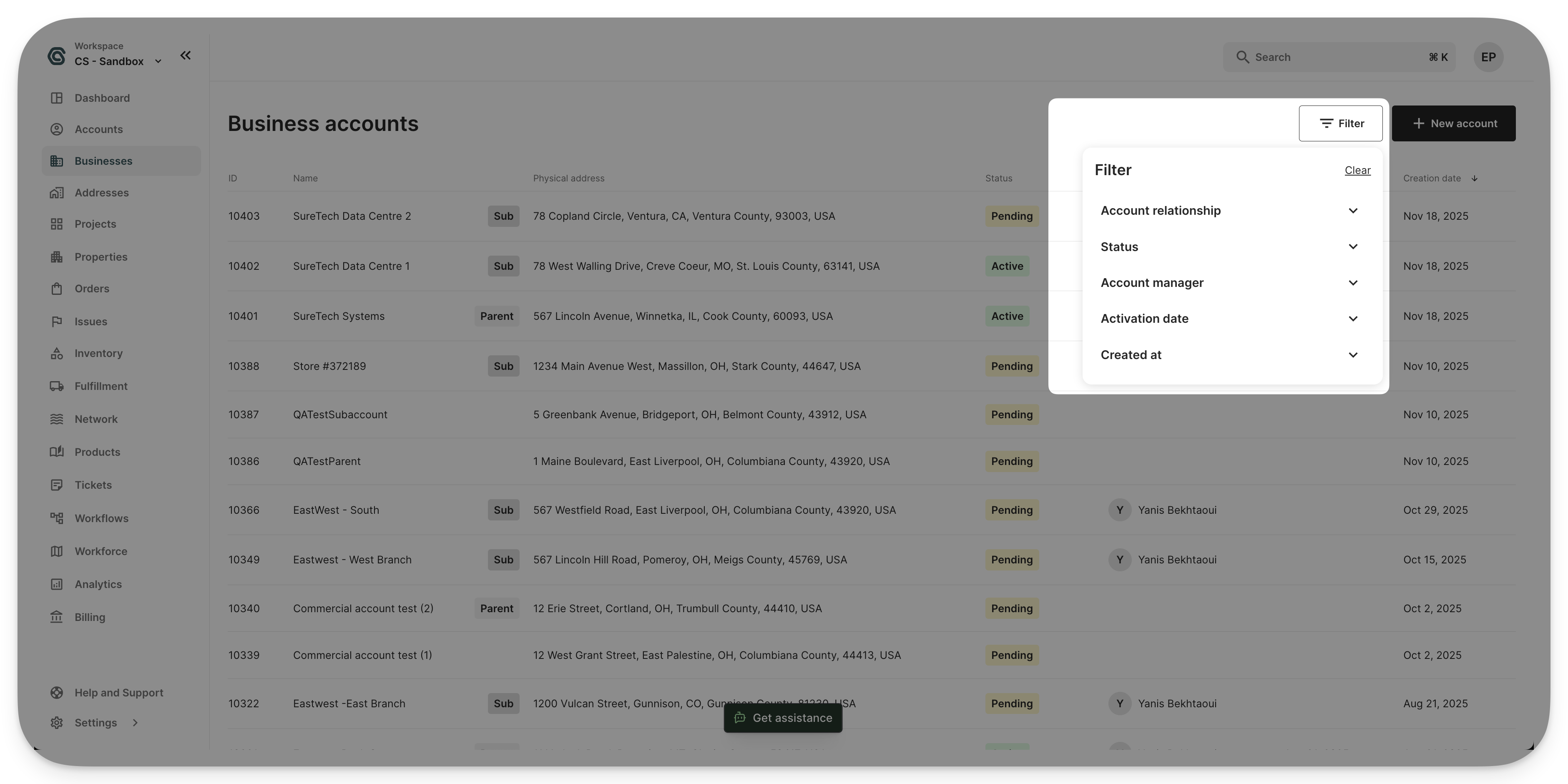
Filter | Description |
|---|---|
Account Relationship | Filter by:
|
Status | Filter by custom Business Account statuses. |
Account manager | Filter accounts by assigned ownership. |
Activation | Filter by account activation date. |
Created at | Filter by the date the account was created in gaiia. |
gaiia's Business Accounts are not designed for prospecting or sales motions — we recommend using a dedicated CRM for that. Please reach out to gaiia if you are interested in integrating your CRM with gaiia.